
 ChatGPT
 Perplexity
 Grok
Grok Google AI
 Claude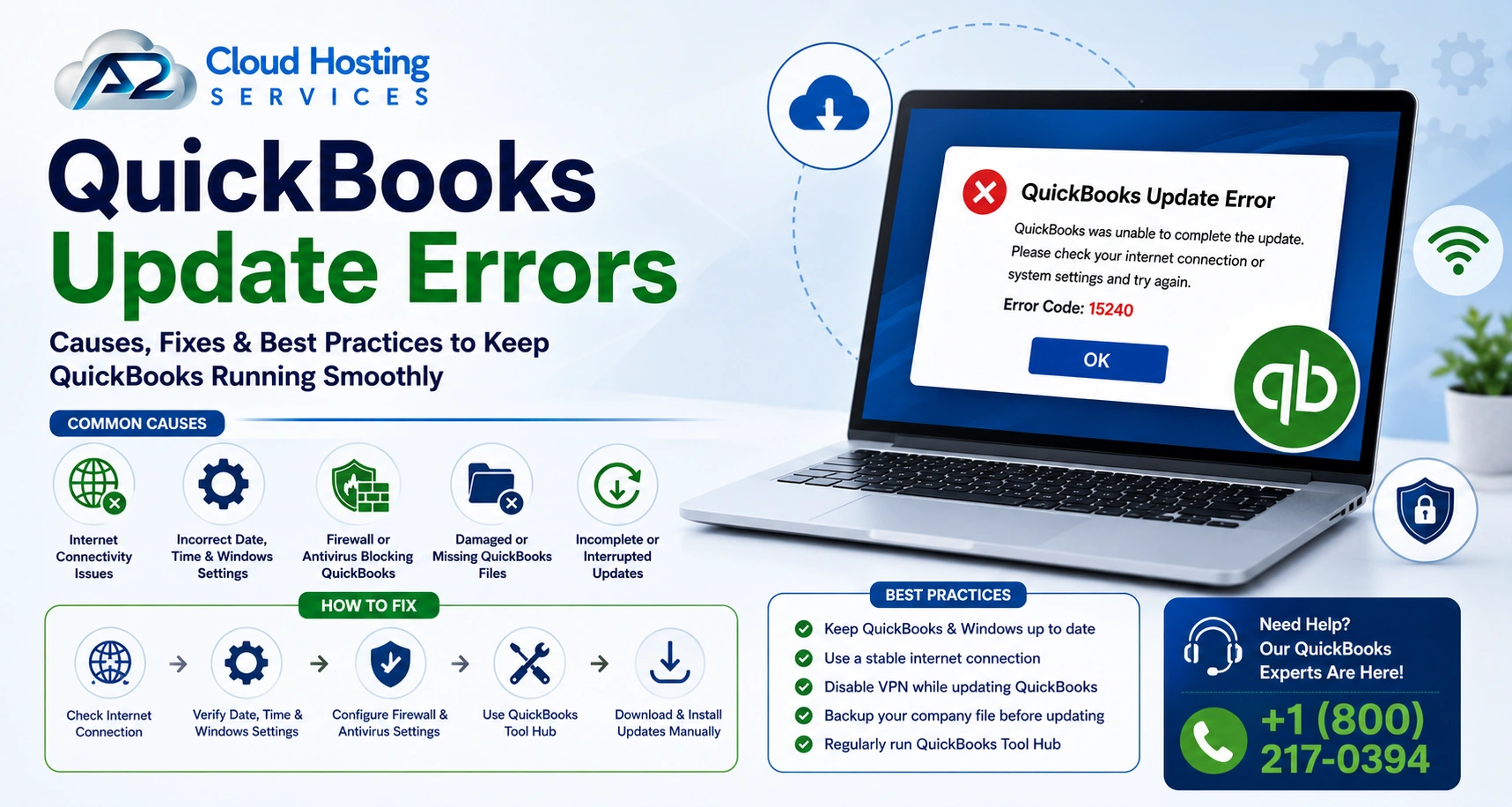
QuickBooks update errors are among the most annoying yet common problems that many business owners as well as accountants encounter when managing their financial software. Whether you are trying to install the latest payroll tax tables, update your QuickBooks Desktop application, or download a critical security patch, these errors can bring your workflow to a sudden halt. QB update errors can appear in many forms. In this article, we will cover everything you need to know about the update errors of QuickBooks, all the while sharing proven, step-by-step solutions to address the errors in QuickBooks.
What Are QuickBooks Update Errors and Why Do They Occur?
QuickBooks update errors are system-level or network-level failures that prevent QuickBooks from downloading, installing, or verifying updates. These errors can affect payroll updates, software patches, and tax table downloads. Understanding the root cause is the first step toward finding a fix.
Common Causes of QuickBooks Update Errors
Corrupted or missing Windows system files are required for update processes
Firewall or antivirus software is blocking QuickBooks from accessing the servers
Incorrect browser security settings (QuickBooks relies on Internet Explorer components).
- Damaged QuickBooks installation files or components, like the payroll service.
- Expired or missing Digital Signature Certificates on QuickBooks update files.
- Poor or unstable internet connectivity during the download process.
- Windows registry errors that interfere with the update module execution.
- Incorrect system date and time are causing SSL certificate validation failures.
Most Common QuickBooks Update Error Codes Explained
QuickBooks Desktop displays specific error codes to help users identify the type of problem. Below are the most frequently reported update errors, what they mean, and how to fix them.
QuickBooks Error 15215: Unable to Verify Digital Signature
QuickBooks Error 15215 appears when QuickBooks cannot verify the digital signature of a file required for a payroll or software update. This happens because another application, often Internet Explorer or a system process, is running in the background and locking resources needed by the update module
Why It Happens?
- Windows is running too many background processes during the update.
- Internet Explorer’s security certificate validation is failing.
- QuickBooks does not have the required administrator privileges.
- Antivirus or firewall software is interfering with file verification.
How to Fix QuickBooks Error 15215
- Close all open applications and restart Windows before running the update.
- Right-click the QuickBooks Desktop icon and select ‘Run as Administrator‘.
- Open Internet Explorer > Tools > Internet Options > Advanced tab, and ensure SSL 2.0 and SSL 3.0 are checked.
- Add QuickBooks updated URLs to Internet Explorer’s trusted sites list.
- Temporarily disable your antivirus software and attempt the update again.
- If the error persists, use QuickBooks Tool Hub > Quick Fix my Program.
QuickBooks Error 15243: Payroll Update Did Not Complete
QuickBooks Error 15243 usually indicates that the QuickBooks File Copy Service (FCS) is either disabled or not functioning correctly. The FCS is responsible for copying payroll update files to the correct location, and when it fails, the update process is left incomplete
Why It Happens?
- Payroll update stops midway without completing.
- The File Copy Service (FCS) is disabled in Windows Services.
- Re-running the update without properly shutting it down.
How to Fix QuickBooks Error 15243
- Press Windows + R, type ‘services.msc‘, and press Enter to open Windows Services.
- Scroll down to locate ‘Intuit QuickBooks FCS,’ right-click and choose Properties.
- Set the Startup Type to ‘Manual‘ and click ‘Start‘, then click OK.
- Return to QuickBooks and attempt the payroll update again.
- If the service fails to start, repair QuickBooks using the QuickBooks Tool Hub’s Program Problems tool.
QuickBooks Error 12007: Network Timeout During Update
QuickBooks Error 12007 is a network-related error that occurs when QuickBooks fails to reach update servers within the allowed time window. The most common triggers are an incorrect Internet Explorer configuration, proxy server interference, or a slow/unstable internet connection
Why It Happens?
- A weak, unstable, or interrupted internet connection prevents communication with the servers.
- Security software misidentifies QuickBooks update activity as a threat and blocks access.
- Misconfigured Windows system files affecting the registry, or interruptions during previous updates.
How to Fix QuickBooks Error 12007
- Open your Browser > Tools > Internet Options > Connections tab > LAN Settings.
- Uncheck ‘Automatically detect settings‘ and ensure no proxy server is listed unless required.
- Go to the Advanced tab and confirm that SSL 2.0 and TLS 1.2 are enabled.
- Reset your browser settings to default if unsure of the current configuration.
- Add .quickbooks.com as exceptions in your firewall software.
- Try running the update after temporarily disabling VPN or proxy software.
- If the issue continues, use QuickBooks Tool Hub > Network Issues for automated repair.
QuickBooks Error 12152: Invalid HTTP Response from Servers
QuickBooks Error 12152 is triggered when QuickBooks receives an invalid or unexpected HTTP response from update servers. This often points to a misconfigured Internet Explorer setting, an expired SSL certificate on the machine, or a conflict with another application that manages internet connections.
- Incorrect or outdated Secure Sockets Layer (SSL) settings are preventing secure communication with the servers.
- Overprotective antivirus or firewall settings are blocking QuickBooks from accessing the internet.
- Incorrect date and time settings on the computer are causing verification issues with the server.
- Corrupted QuickBooks installation files or API key issues within the Windows registry.
- Interrupted connection specifically during a payroll tax table update.
How to Fix QuickBooks Error 12152
- Open Internet Explorer and go to Tools > Internet Options > Advanced tab.
- Click ‘Restore Advanced Settings‘ and then click ‘Reset‘.
- Clear all cached data: go to the General tab > Delete > check all boxes > Delete.
- Ensure that the system date and time are accurate; an incorrect date causes SSL validation errors.
- Run QuickBooks as Administrator and retry the update.
Resolve Another QuickBooks Error:- QuickBooks Error 15241
General Troubleshooting Steps for All QuickBooks Update Errors

Regardless of the specific error code you encounter, these foundational troubleshooting steps apply to all QuickBooks update errors. Completing these steps first can often resolve the problem without needing error-specific fixes.
Step 1: Use the QuickBooks Tool Hub
QuickBooks Tool Hub is a free diagnostic utility that automatically identifies and repairs common update problems. Download the latest version, install it, and run both ‘Quick Fix my Program’ and ‘QuickBooks Update Diagnostic Tool’.
Step 2: Verify Windows and System Settings
- Confirm that Windows is fully updated to the latest version.
- Check that your system date, time, and timezone are correctly configured.
- Make sure your user account has full Administrator privileges.
- Temporarily disable User Account Control (UAC) and test the update.
Step 3: Configure Firewall and Antivirus Exceptions
Most QB update errors involve a security application blocking QuickBooks from reaching the servers. Add the following exceptions to your firewall and antivirus software:
- QuickBooks executable files (QBW32.exe, QBDBMgrN.exe, etc.)
- QuickBooks Update Service (QBUpdate.exe)
Step 4: Repair or Reinstall QuickBooks
If the above steps fail, a damaged QuickBooks installation is likely the cause. Use the Control Panel > Programs and Features to run a Repair on QuickBooks. If the repair does not resolve the issue, perform a clean uninstall using the QuickBooks Clean Install Tool and reinstall from scratch.
Also Fix:- QuickBooks Error 6000
How to Prevent QuickBooks Update Errors in the Future
Prevention is always better than troubleshooting. Following these best practices will significantly reduce the likelihood of encountering update errors in QuickBooks going forward.
- Always run QuickBooks as an Administrator when performing updates.
- Keep Windows and Internet Explorer (or Edge) fully updated.
- Maintain a stable internet connection during update downloads — avoid initiating updates on weak Wi-Fi.
- Regularly verify that QuickBooks-related services (especially FCS) are running in Windows Services.
- Add QuickBooks to your antivirus and firewall whitelist permanently.
- Back up your QuickBooks company file before installing major updates.
- Schedule updates during off-peak hours to avoid interference from other network-heavy applications.
Conclusion
QuickBooks update errors can disrupt payroll processing, delay tax filings, and impact your accounting workflow, but they are almost always fixable with the right approach. From network configuration issues to disabled Windows services, each error code points to a specific underlying cause. The key is to methodically work through the diagnostic steps outlined in this guide.
If you are still seeing QuickBooks update errors, then it is best to reach out at +1 (800) 217-0394 for professional, personalized assistance.
Advanced external solutions:- QuickBooks Desktop Update Errors
FAQs
What is the fastest way to fix update errors in QuickBooks?
The fastest solution for most QB update errors is to use the official QuickBooks Tool Hub Download it, open the ‘Program Problems’ section, and run ‘Quick Fix my Program’. This automated tool resolves the majority of common update failures in minutes without requiring manual configuration changes.
Why does my QuickBooks update keep failing even after restarting?
Repeated update failures after a restart usually indicate that a firewall, antivirus program, or Windows service is persistently blocking the update process. Check your security software for QuickBooks-related blocks, verify that the QuickBooks File Copy Service (FCS) is enabled in Windows Services, and confirm that your internet connection is stable throughout the update.
Do QB update errors affect my company data?
QB update errors affect the update process itself, not your existing company data. Your financial records and transactions remain safe. However, it is always a best practice to back up your QuickBooks company file before attempting any major update or repair procedure, just as a precaution against unexpected software issues.
Is it safe to disable antivirus software to fix a QuickBooks update error?
Temporarily disabling antivirus software is a legitimate diagnostic step to determine if it is causing the update error. However, only do this when connected to a secure network, and re-enable your antivirus immediately after the update completes. A better long-term solution is to add QuickBooks and its related processes to your antivirus exclusion list permanently.
Will reinstalling QuickBooks delete my company files?
No. Reinstalling QuickBooks Desktop does not delete your company files (.QBW files), as these are stored separately on your hard drive or server. However, you should always back up your data before reinstalling. Use the QuickBooks Clean Install Tool for a thorough reinstallation, and restore your company file after the fresh installation is complete.

Brown Lopez is a Cloud Engineer and technical writer based in Austin, USA, who enjoys turning complex cloud ideas into clear, simple insights. With solid experience in cloud architecture and real-world projects, he loves creating practical content that helps professionals understand, build, and improve their cloud solutions with confidence.