
 ChatGPT
 Perplexity
 Grok
Grok Google AI
 Claude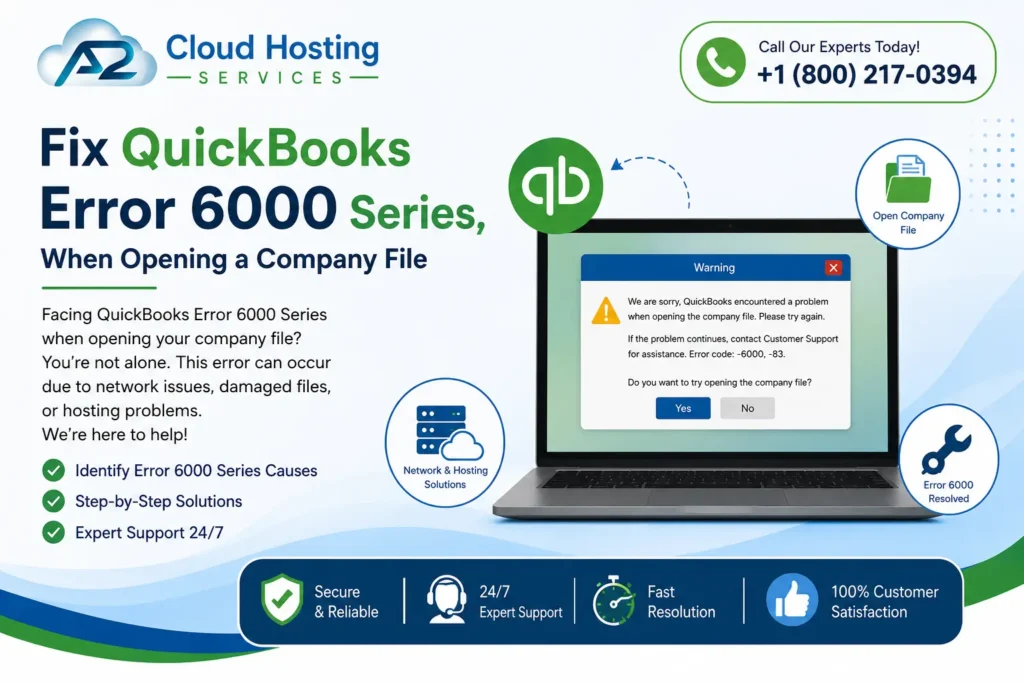
QuickBooks Error 6000 Series is one of the most frustrating problems QuickBooks Desktop users face — it locks you out of your company file at the worst possible moment. Whether you are trying to open, restore, or back up your financial data, these errors can bring your entire accounting workflow to a halt.
This complete 2026 guide covers every major error code in the 6000 series, explains exactly what triggers each one, and walks you through proven, step-by-step fixes — organized by your specific situation so you can find the right solution fast.
What Is the QuickBooks Error 6000 Series?
The QuickBooks Error 6000 Series is a collection of error codes that QuickBooks Desktop displays whenever it cannot open, access, or restore a company file (.QBW). Each code in the series has a secondary number that identifies the exact cause of the failure.
These errors most commonly occur when:
- Opening a company file stored on a network drive or server
- Restoring a backup (.QBB) file after a system crash
- Switching QuickBooks from single-user to multi-user mode
- After an unexpected system shutdown while QuickBooks was running
- When the QuickBooks Database Server Manager is not running in the background
- When folder permissions are set incorrectly on the company file location
- When the .ND or .TLG support files become corrupted
Important: The 6000 series errors affect all versions of QuickBooks Desktop, including
QuickBooks Pro, QuickBooks Premier, and QuickBooks Enterprise.
Symptoms of QuickBooks Error 6000 Series
Before jumping into fixes, confirm you are dealing with a 6000 series error. Common signs include:
- A pop-up error message containing “-6000” and a secondary code (e.g., -77, -82, -83)
- QuickBooks freezes or crashes when opening a company file
- The company file appears grayed out or inaccessible in the file list
- QuickBooks Desktop becomes sluggish or unresponsive while attempting to load a file
- The system desktop crashes repeatedly during QuickBooks operation
- Multi-user access suddenly stops working with no clear reason
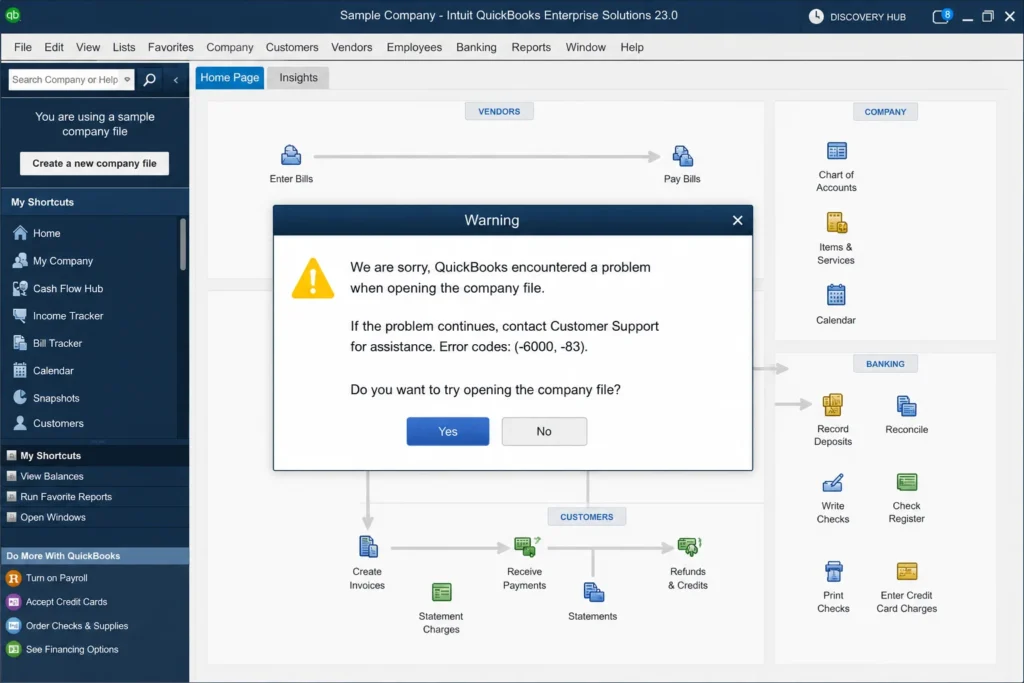
Complete QuickBooks 6000 Error Codes Reference Table
Below is a full reference of all -6000 series error codes and their causes. Find your specific error code here to understand what you are dealing with
Error Code | What It Means | Most Common Cause |
| -6000, -77 | Company file cannot be opened | File permission issue or incorrect network path |
| -6000, -82 | File already open on another device | Multi-user conflict or corrupted .ND file |
| -6000, -83 | File is damaged or has missing data | Corrupt company file |
| -6000, -95 | File access problem during multi-user | Hosting conflict between workstations |
| -6000, -107 | .TLG file is damaged | Corrupted transaction log file |
| -6000, -301 | File not found at the given path | File renamed, moved, or deleted |
| -6000, -305 | Network or file damage issue | Wrong network setup or damaged company file |
| -6000, -816 | File is in use by another process | Background process or improper shutdown |
| -6000, -832 | Hosting or .ND file issue | Hosting enabled incorrectly or .ND file failure |
| -6000, -1076 | QuickBooks installation is damaged | Corrupted QB installation files |
| -6010, -100 | File hosted on wrong computer | Company file hosted on non-server workstation |
| -6073, -816 | Multiple computers hosting the file | Multi-host conflict, firewall block, or file damage |
| -6087, 0 | File is open locally on one machine | Conflict with local file session |
| -6120, 0 | Workstation hosting conflict | One workstation hosting the file; port 8019 blocked |
| -6129, -101 | Database Server Manager failure | Wrong folder permissions or QBDBSM not running |
| -6131, 0 | File open locally | Local file session conflict |
| -6138, -105 | File hosted on wrong server | Company file on non-server computer |
| -6144, -82 | Wrong network setup | Incorrect network configuration |
| -6144, -103 | Incorrect .ND file path | .ND file has wrong path or QBDBSM user account is damaged |
| -6144, -304 | Error when opening QuickBooks | Something went wrong during QB startup |
| -6144, 0 | Incorrect .ND file path | Same as -6144, -103 |
| -6147, 0 | Backup restore issue | Error during company file or backup (.QBB) open |
| -6176, 0 | Firewall blocking connection | Firewall blocks communication between two computers |
| -6189, -83 | Wrong hosting server | File hosted on non-server computer |
| -6189, 1005 | Error during QB open | Something went wrong during startup |
| -6190, -82 | Single vs. multi-user mismatch | User in single-user mode while others are in multi-user |
| -6190, -83 | Wrong hosting server | File hosted on non-server computer |
| -6190, -85 | Single vs. multi-user mismatch | .TLG and .QBW file mismatch |
| -6190, 816 | Single vs. multi-user conflict | User in single-user mode; .TLG and .QBW mismatch |
| -6190, 1005 | Error during QB open | Something went wrong during startup |
| -6210, 0 | Wrong hosting setup | File hosted by non-server computer |
How to Fix QuickBooks Error 6000 Series
The right fix depends on how you are opening the company file. Follow the section that matches your situation.
First Step for ALL 6000 Errors — Update QuickBooks
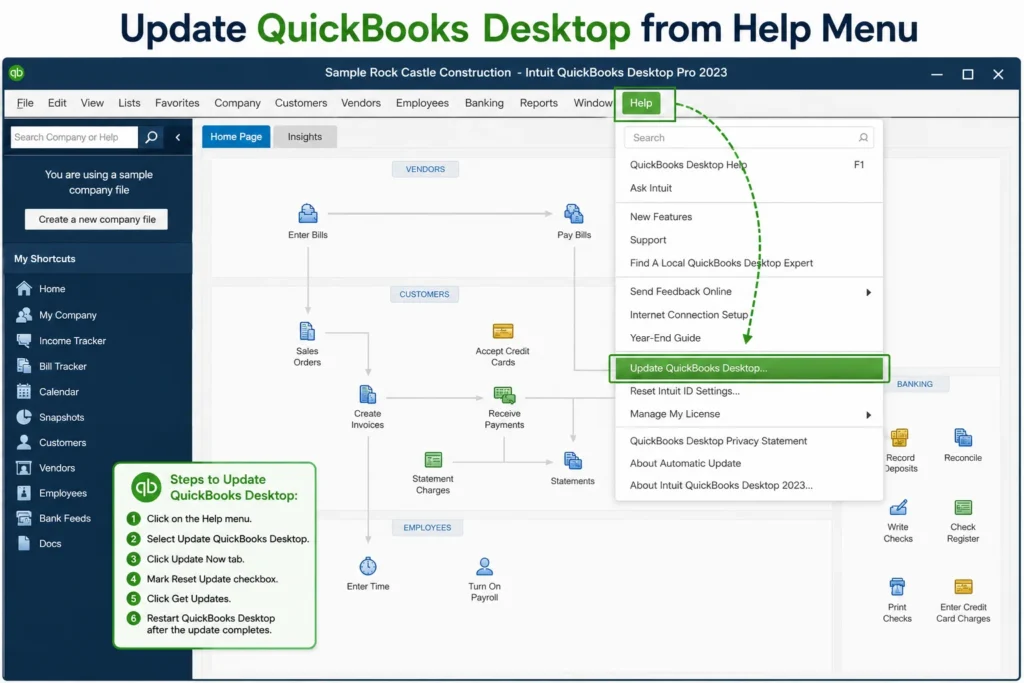
Before trying anything else, make sure QuickBooks is fully updated. Many 6000 errors are caused by bugs in older versions that Intuit has already patched.
Steps:
- Open QuickBooks Desktop and go to Help in the top menu.
- Click Update QuickBooks Desktop.
- Click Update Now, then select Get Updates.
- Once the update downloads, close and relaunch QuickBooks.
When prompted, click Install Now to complete the update.
Condition 1: You Are Opening the Company File (Local or Network)
Fix 1: Run QuickBooks File Doctor from Tool Hub
The 🔗QuickBooks File Doctor is the official Intuit diagnostic tool. It automatically detects and repairs both network issues and company file damage. This is the recommended first fix for most 6000 errors.
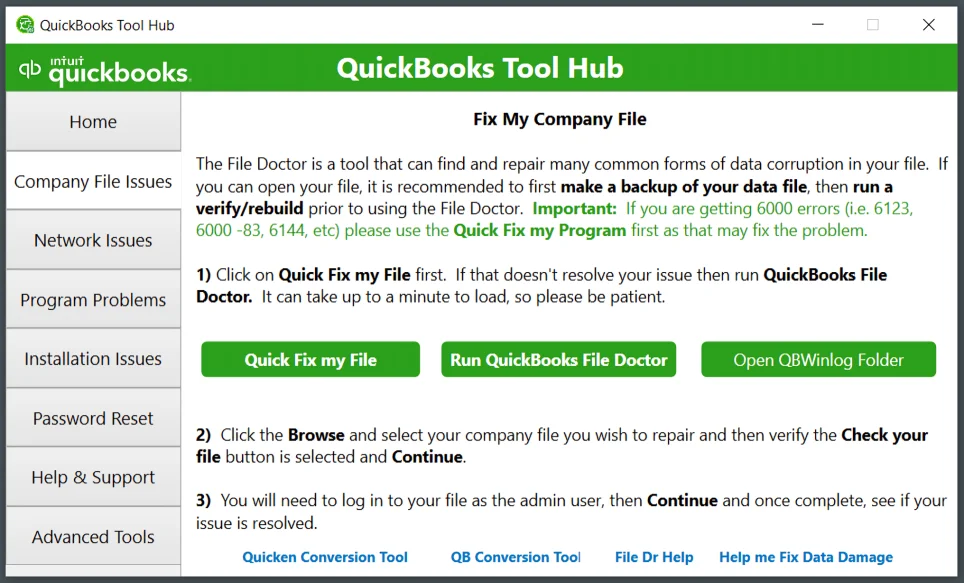
Steps:
- Close QuickBooks completely.
- Download and install the latest version of QuickBooks Tool Hub if you have not already.
- Open the Tool Hub and click Company File Issues.
- Click Run QuickBooks File Doctor (it may take up to one minute to open).
- In the File Doctor window, select your company file from the dropdown. If it does not appear, click Browse and Search.
- Select Check your file (middle option) and click Continue.
- Enter your QuickBooks Admin password and click Next.
- Wait for the scan to complete — this typically takes 3 to 5 minutes.
- Once done, reopen QuickBooks and try your company file again.
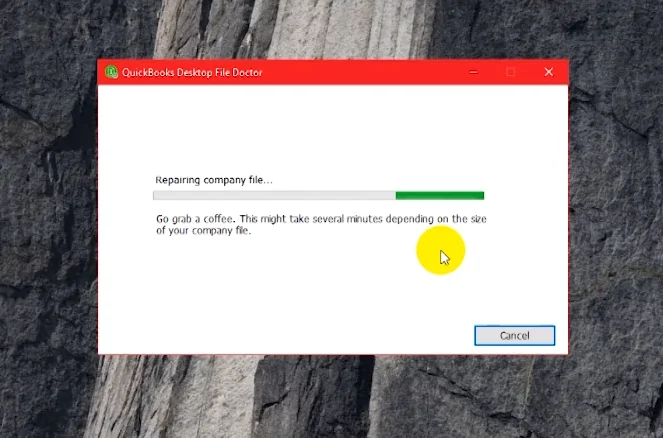
Pro Tip: If your company file does not appear in the dropdown list, move the .QBW file temporarily to your local desktop and run the scan from there.
Condition 2: You Are Opening the Company File Locally
This means the company file is stored on the same computer where QuickBooks is installed. Try these solutions in order.
Fix 2: Rename the .ND and .TLG Files
Every QuickBooks company file has two supporting files — a Network Descriptor (.ND) and a Transaction Log (.TLG). When these become corrupted, they directly cause 6000 series errors. Renaming them forces QuickBooks to automatically rebuild them — and you will not lose any company data.
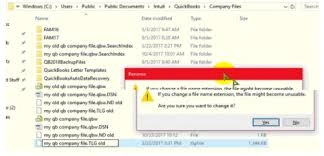
Steps:
- Open File Explorer and navigate to the folder containing your company file (.QBW).
- Look for two files with the same name as your company file but with .ND and .TLG extensions:
- CompanyName.qbw.nd
- CompanyName.qbw.tlg
- Right-click the .ND file and select Rename.
- Add .OLD to the end of the file name: CompanyName.qbw.nd.OLD
- Repeat for the .TLG file: CompanyName.qbw.tlg.OLD
- Reopen QuickBooks and try to open your company file.
Note: If you still get an error, proceed to Fix 3.
Fix 3: Open a Sample Company File (Diagnosis Test)
This step helps you identify whether the problem is with your specific company file or with the QuickBooks installation itself. If a sample file opens without error, your QB installation is fine — the issue is with your company file. If the sample also fails, your QB installation needs repair.
Steps:
- In the No Company Open window, click Open a Sample File.
- Choose any file from the sample list.
- If the sample file opens → your QB installation is fine. Move to Fix 4.
- If the sample file also fails → your QuickBooks installation is damaged. Run a repair:
- Go to Control Panel → Programs → Programs and Features
- Find QuickBooks Desktop, right-click, and select Repair
Fix 4: Copy the Company File to Your Desktop
If the file is buried in multiple subfolders, the file path may exceed Windows’ 210-character limit — causing QuickBooks to fail silently. Moving the file to the desktop tests whether the file path is the problem.
Steps:
- Navigate to the folder where your .QBW file is stored.
- Right-click the .QBW file and select Copy.
- Go to your desktop and paste it (Ctrl+V).
- Hold the Ctrl key and open QuickBooks to open the “No Company Open” window.
- Select Open or Restore an Existing Company and browse to the file on your desktop.
- If it opens from the desktop → the original file location is the problem (path too long or folder corrupted). Move the file permanently to a shorter path like C:\QBFiles\CompanyName.qbw.
- If it still fails → try Fix 5.
Important: Check your company file path length. Copy the full path from the address bar and paste it into Notepad. If it is longer than 210 characters, move the file to a shorter path.
Fix 5: Set Correct Folder Permissions
QuickBooks requires full read/write access to the folder where the company file is stored. Incorrect permissions are a frequent cause of 6000 errors, especially after Windows updates or in shared environments.
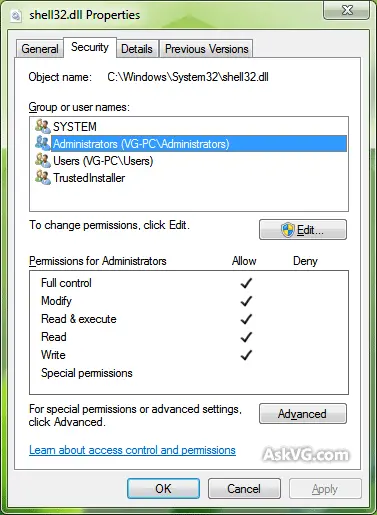
Steps:
- Right-click the folder containing your .QBW file and select Properties.
- Click the Security tab.
- Click Edit to modify permissions.
- Find and select the QBDataServiceUserXX user (where XX is your QuickBooks version year — e.g., QBDataServiceUser28 for QB 2018).
- Under the Allow column, check the box for Full Control.
- Click Apply, then OK.
- Restart QuickBooks and try opening your file.
Fix 6: Restore a Backup Copy of the Company File
If your company file is severely corrupted — particularly for errors like -6000, -83 — restoring from a clean backup is the most reliable solution.
Steps:
- Open QuickBooks and go to File → Open or Restore Company.
- Select Restore a Backup Copy and click Next.
- Choose Local Backup and click Next.
- Browse to your .QBB backup file and select it.
- Follow the on-screen prompts to complete the restore.
- When saving the restored file, give it a new name — do not overwrite the damaged file until you confirm the restored version is complete.
Pro Tip: Before restoring, check that your computer is not hosting. Go to File → Utilities. If “Stop Hosting Multi-User Access” is listed, click it and select Yes before restoring.
Fix 7: Use Auto Data Recovery (ADR) Tool
If your company file is damaged and you have no usable backup, QuickBooks Auto Data Recovery can recover most of your recent transactions. Use this only after the above fixes have failed.
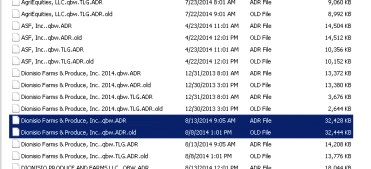
Steps:
- Create a new folder on your desktop and name it QBTest.
- Open the folder where your company file is stored.
- Find the .TLG file and copy it into the QBTest folder.
- In the same company file folder, open the QuickBooksAutoDataRecovery subfolder.
- Copy the .QBW.adr file and paste it into the QBTest folder.
- In the QBTest folder, rename the .QBW.adr file by removing the .adr extension so it becomes a regular .QBW file.
- Open QuickBooks and open the company file from the QBTest folder.
- Go to File → Utilities → Verify Data to check the recovered file’s integrity.
- If the data looks complete and intact, move this file to your main company files folder and archive the damaged original.
Condition 3: You Are Opening the Company File Over a Network
This applies when your company file is stored on a server or another workstation and you are accessing it from a different computer.
Fix 8: Check That Only the Server Is Hosting the File
Multiple computers hosting the same company file simultaneously is one of the most common causes of 6000 errors in multi-user environments. Only one computer — the server — should host the file.
Steps:
- On each workstation (not the server), open QuickBooks.
- Press F2 to open the Product Information window.
- Scroll to Local Server Information and check the Hosting field.
- If Hosting shows “Local files only” or “Multi-user access” on a workstation, it needs to be disabled.
- Go to File → Utilities → Stop Hosting Multi-User Access on that workstation.
- Repeat on all workstations. Only the server should have hosting enabled.
Fix 9: Rename .ND and .TLG Files + Run Database Server Manager
After renaming the .ND and .TLG files (see Fix 2 steps above), you also need to restart the QuickBooks Database Server Manager on the server so it rebuilds the network configuration files.
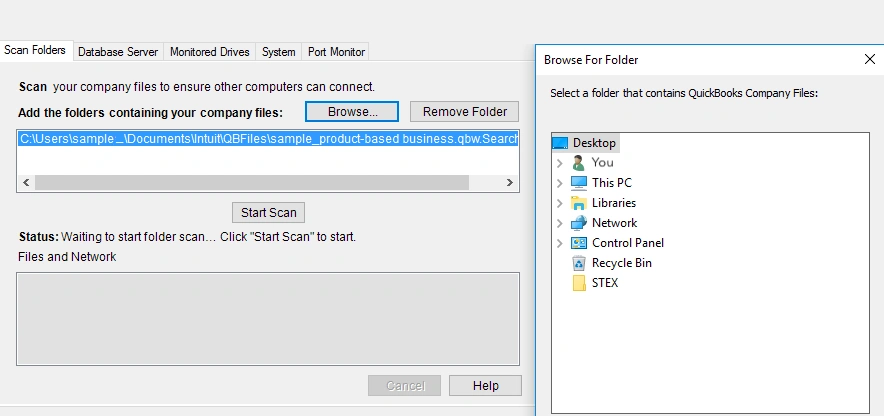
Steps:
- On the server computer, open the QuickBooks Tool Hub.
- Click Network Issues.
- Select QuickBooks Database Server Manager.
- If QuickBooks is not installed on the server, install it now.
- If your company file folder is listed, click Start Scan. If not, click Browse, navigate to the folder, and then click Start Scan.
- Once the scan is complete, go back to any workstation and try opening the company file in multi-user mode.
Fix 10: Close All QuickBooks Background Processes
Lingering QuickBooks processes from a previous session can lock the company file and trigger 6000 errors — especially -6000, -816.
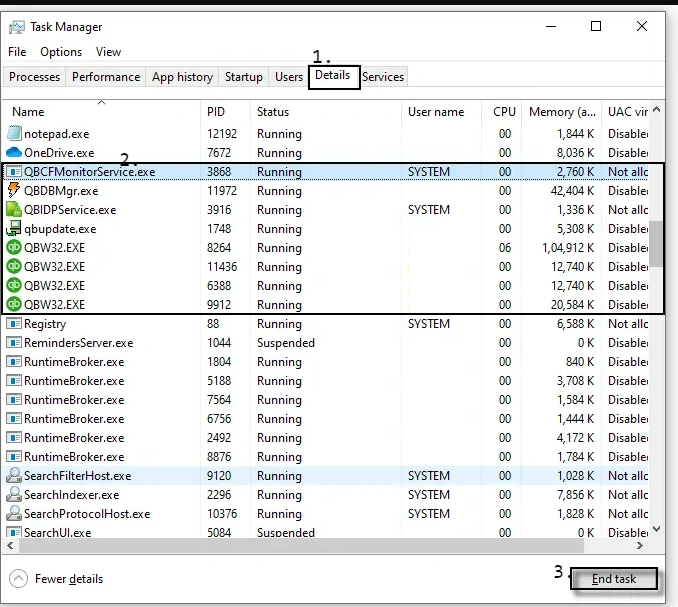
Steps:
- Sign in to the server computer as Administrator.
- Press Ctrl + Shift + Esc to open Task Manager.
- Click the Users tab to show all active processes.
- Find and select each of the following QuickBooks processes:
- QBW32.EXE
- QBDBMgrN.exe or QBDBMgr.exe
- qbupdate.exe
- QBCFMonitorService.exe
- QBMapi32.exe
- Right-click each one and select End Task.
- Reopen QuickBooks and try opening the company file in multi-user mode.
Fix 11: Configure Windows Firewall and Antivirus
Firewall and antivirus software frequently block the QuickBooks Database Server Manager from communicating across the network — a direct cause of 6000 errors in multi-user mode. You need to add QuickBooks executables as exceptions.
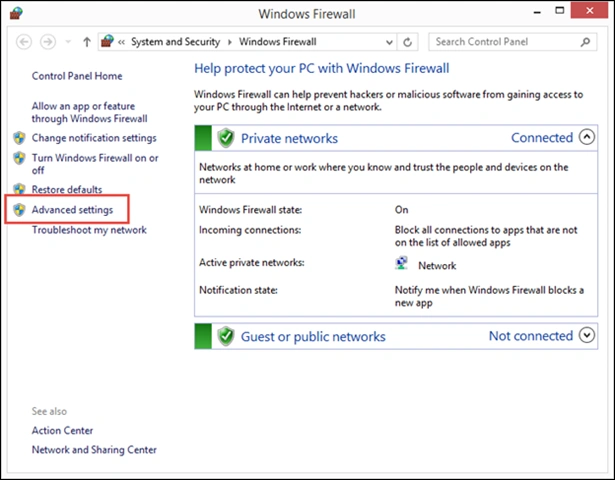
Steps to add QuickBooks as a Windows Firewall exception:
- Open Windows Security and click Firewall & Network Protection.
- Select Allow an app through firewall.
- Click Change Settings, then Allow Another App.
- Click Browse and navigate to the QuickBooks installation folder: C:\Program Files\Intuit\QuickBooks [version year]
- Add these executable files as exceptions:
- QBW32.exe
- QBDBMgrN.exe
- QBCFMonitorService.exe
- Also open these firewall ports for your QuickBooks version:
- QuickBooks 2019–2026: Port 8019 (TCP)
- QuickBooks Desktop Enterprise: Ports 8019, 56728, 55378–55382
- Apply the same exceptions in your antivirus software under its exclusions or exceptions list.
- Restart the server and all workstations, then try opening the company file.
How to Prevent QuickBooks Error 6000 Series in the Future
Once you have resolved the error, take these steps to avoid it happening again:
1. Always keep QuickBooks updated Install updates regularly from Help → Update QuickBooks Desktop. Intuit frequently releases patches that fix known file-access bugs.
2. Store company files on a dedicated server Keep your .QBW file on a dedicated server — not on a shared workstation. This prevents hosting conflicts and improves multi-user reliability. Consider QuickBooks cloud hosting to eliminate local server issues entirely.
3. Enable automatic backups Set QuickBooks to create a backup before every session: File Backup Company → Create Local Backup → Options → check “Save backup copy automatically”. Keep at least two backups — one local and one in cloud storage.
4. Run Verify & Rebuild Data monthly Go to Company → Utilities → Verify Data once a month. This catches file damage early before it becomes a full 6000 error. If Verify reports problems, immediately run Rebuild Data to fix them.
5. Use a stable, wired network connection Avoid running QuickBooks over VPN, Wi-Fi, or unstable connections. Multi-user QuickBooks performs best on a wired LAN. Unreliable connections are a leading cause of mid-session file corruption.
6. Always exit QuickBooks properly Always close QuickBooks using File → Exit. Never shut down your computer or close the window while QuickBooks is actively syncing. Improper shutdowns are the #1 cause of .TLG file corruption.
7. Keep only one computer hosting Regularly check that no workstations have accidentally enabled hosting (File → Utilities → Hosting). Only the server should host the company file.
When to Contact QuickBooks Support
If you have worked through all the fixes above and the error persists, your company file may have damage beyond self-repair. Consider professional help if:
- The QuickBooks File Doctor reports it cannot repair the file
- The error continues after completing all 11 fixes in this guide
- You notice missing transactions or data loss after restoring a backup
- The same error recurs multiple times per week despite applying fixes
- The Auto Data Recovery tool finds no usable recovery data
In serious cases, Intuit’s data recovery team can often rescue files that standard tools cannot. You can reach QuickBooks support through the Help menu inside QuickBooks Desktop or at quickbooks.intuit.com/support.
Conclusion
The QuickBooks Error 6000 Series is a fixable problem in almost every case. Start by updating QuickBooks and running the File Doctor tool. If the error persists, work through the solutions based on whether you are opening the file locally or over a network. Rename the .ND and .TLG files, check folder permissions, close background processes, and configure your firewall correctly.
For severe file damage, use the Auto Data Recovery tool or restore from a recent backup. Once resolved, protect yourself going forward with regular updates, automatic backups, and proper exit procedures.
If your team frequently runs into file-access issues across a network, consider moving to hosted QuickBooks on the cloud — it eliminates most 6000 series errors permanently by removing local network and permission variables entirely.
Frequently Asked Questions
What is QuickBooks Error 6000 Series?
QuickBooks Error 6000 Series is a group of error codes that QuickBooks Desktop displays when it cannot open, access, or restore a company file (.QBW). The errors are caused by file corruption, network configuration problems, incorrect folder permissions, or damaged support files (.ND and .TLG).
What is the most common QuickBooks 6000 error?
The most frequently reported errors are -6000, -77 (permission or path issue), -6000, -82 (multi-user conflict), and -6000, -83 (corrupted company file). Each has slightly different causes but overlapping fixes.
How do I fix QuickBooks Error 6000, -77?
Error 6000 -77 is usually caused by a file permission problem or an incorrect network path. Fix it by: (1) running QuickBooks File Doctor, (2) copying the company file to your local desktop, (3) setting Full Control permissions on the company file folder, and (4) checking that the network path is correct and accessible.
How do I fix QuickBooks Error 6000, -83?
Error 6000 -83 indicates a damaged company file. Fix it by: (1) renaming the .ND and .TLG files, (2) running QuickBooks File Doctor, (3) restoring from a recent backup, or (4) using the Auto Data Recovery (ADR) tool if no backup is available.
How do I fix QuickBooks Error 6000, -832?
Error 6000 -832 is caused by hosting being incorrectly enabled or a corrupted .ND file. Fix it by: (1) renaming the .ND file by adding .OLD to the end, (2) running QuickBooks Database Server Manager to rebuild the .ND file, and (3) confirming that only the server has hosting enabled.
How do I fix QuickBooks Error 6000, -301?
Error 6000 -301 means QuickBooks cannot find the company file at the stored path — usually because the file was renamed, moved, or deleted. Fix it by: (1) using File → Open or Restore Company to browse directly to the .QBW file’s new location, (2) updating the stored path if needed, and (3) running File Doctor.
How do I fix QuickBooks Error 6000, -816?
Error 6000 -816 means the company file is being held by a background process. Fix it by opening Task Manager, ending all QuickBooks processes (QBW32.EXE, QBDBMgrN.exe, qbupdate.exe), and then reopening the company file in multi-user mode.
Can a firewall cause QuickBooks Error 6000?
Yes. Windows Firewall and third-party antivirus programs can block the QuickBooks Database Server Manager from communicating across your network. This is a very common cause of 6000 errors in multi-user environments. Add QBW32.exe, QBDBMgrN.exe, and QBCFMonitorService.exe as firewall exceptions and open port 8019 to resolve it.
Does QuickBooks Error 6000 cause data loss?
Most 6000 errors do not cause data loss — they simply prevent access to the file. However, errors like -6000, -83 indicate actual file corruption, which can mean lost transactions if the damage is severe and no recent backup exists. Always maintain regular backups to protect against this.
Can I prevent QuickBooks Error 6000 from happening again?
Yes. The most effective prevention steps are: keeping QuickBooks updated, storing company files on a dedicated server or in QuickBooks cloud hosting, enabling automatic backups, running monthly Verify Data checks, and always exiting QuickBooks properly rather than force-closing.
What is the difference between QuickBooks Error 6000 and Error 6190?
Both belong to the 6000 series but have different triggers. Error 6000 codes typically relate to file access, permissions, and network paths. Error 6190 codes usually indicate a mismatch between the .TLG transaction log and the .QBW company file, often caused by one user remaining in single-user mode while others attempt multi-user access.
Does running QuickBooks over VPN cause Error 6000?
Yes. Running QuickBooks over a VPN introduces latency and connection instability that can cause 6000 series errors. Intuit recommends running QuickBooks on a local network rather than over VPN. If remote access is required, QuickBooks cloud hosting is a more stable alternative.

Brown Lopez is a Cloud Engineer and technical writer based in Austin, USA, who enjoys turning complex cloud ideas into clear, simple insights. With solid experience in cloud architecture and real-world projects, he loves creating practical content that helps professionals understand, build, and improve their cloud solutions with confidence.