
 ChatGPT
 Perplexity
 Grok
Grok Google AI
 Claude
QuickBooks multi-user mode errors are among the most disruptive issues that businesses face when multiple users need simultaneous access to a company file. When these errors arise, they can, quite easily, bring your entire accounting workflow to a standstill, block payroll processing, and interrupt end-of-day reconciliations. Therefore, understanding the root causes of these errors and knowing how to resolve them is critical to keep operations running without interruptions. This article covers major errors in the H-series, all the while providing proven troubleshooting steps for each specific error code.
What Are QuickBooks Multi-user Mode Errors?
QuickBooks Multi-User Mode Issue occur when multiple users are unable to access a company file at the same time in multi-user mode. These errors usually indicate a problem with network setup, server configuration, or communication between QuickBooks and the company file.
In addition to this, there are also several other potential points of failure, like incorrect firewall configurations and DNS settings to hosting misconfigurations and corrupted .ND files. When any of these components fail, users usually encounter multi-user mode errors in QuickBooks, most commonly from the H-series: H101, H202, H303, and H505.
QuickBooks Error H101: What It Means and How to Fix It
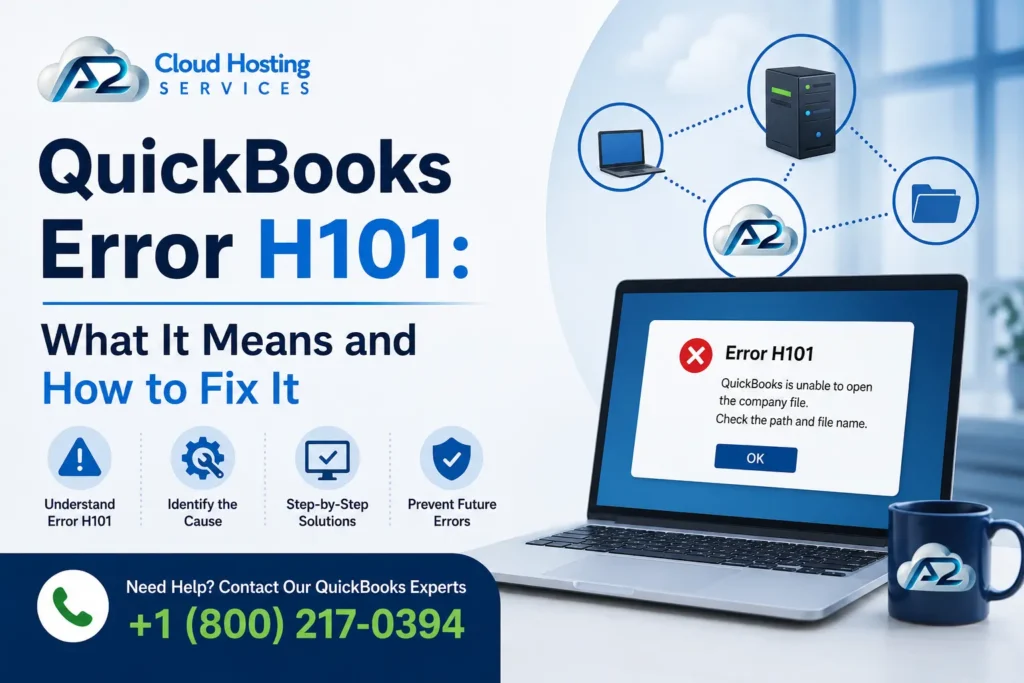
QuickBooks Error H101 appears when a workstation is attempting to access a company file located on another computer, but cannot establish the necessary connection to the host machine. This error typically indicates that the workstation is configured to be the host, or that there is a problem with the QuickBooks Database Server Manager on the server.
Key Symptoms of Error H101
- QuickBooks opens, but cannot switch to Multi-User Mode.
- An error message displays when opening the company file from a workstation.
- The host computer is not recognized on the network.
Quick Fixes For Error H101
- Verify that only the server/host has hosting enabled (go to Files > Utilities > Host Multi-User Access).
- Run the QuickBooks File Doctor tool to scan and repair network issues.
- Restart the QuickBooks Database Server Manager on the host computer.
- Add firewall exceptions for QuickBooks ports such as 8019 and the specific dynamic port assigned to the QuickBooks version.
QuickBooks Error H202: The Most Common Multi-User Error
QuickBooks Error H202 is arguably the most frequently encountered of all QuickBooks Multi-User Mode Issue. It occurs when the workstation trying to open a shared company file needs to communicate with the server, but the connection is being blocked or the server services are not responding. Firewall interference is the leading culprit, but corrupted .ND files and DNS resolution failures are also common triggers.
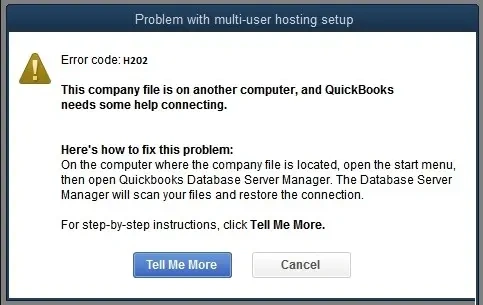
Key Symptoms of Error H202
- Users receive an H202 error message when trying to switch to Multi-User Mode.
- QuickBooks opens the company file in Single-User Mode only.
- Intermittent disconnection from the server during multi-user sessions.
Quick Fixes for Error H202
- On all workstations (not the server), go to File > Utilities and select Stop Hosting Multi-User Access.
- On the server, confirm that Host Multi-User Access is enabled.
- Rename the .ND file and rescan the company file folder using QuickBooks Database Server Manager.
- Restart QuickBooks on all machines after making changes.
QuickBooks Error H303: Hosting Conflict on the Network
QuickBooks Error H303 is a hosting-related error that surfaces when a workstation incorrectly tries to act as a host for the company file, even though another machine is already designated as the server. This conflict prevents proper Multi-User Mode operation. It is especially common in office environments where QuickBooks was previously installed on multiple machines without proper network configuration.
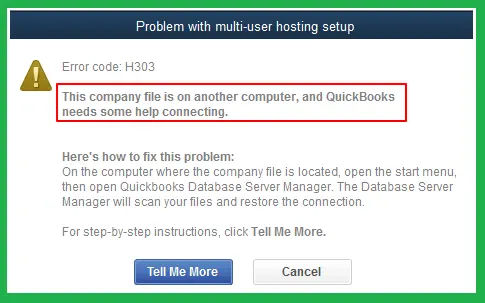
Key Symptoms of Error H303
Error H303 message appears on one or more non-host workstations.
Multi-User Mode is unavailable despite the network being connected.
Conflict between workstations acting as hosts simultaneously.
Quick Fixes for Error H303
On all workstations (not the server), go to File > Utilities and select Stop Hosting Multi-User Access.
On the server, confirm that Host Multi-User Access is enabled.
Rename the .ND file and rescan the company file folder using QuickBooks Database Server Manager.
Restart QuickBooks on all machines after making changes.
QuickBooks Error H505: Server Communication Breakdown
QuickBooks Error H505 indicates that the workstation is unable to reach the computer hosting the company file. Unlike H303, which is typically a hosting conflict, H505 points more directly to a failure in server-client communication — often caused by network service disruptions, improper IP configurations, or the host machine being turned off or asleep.
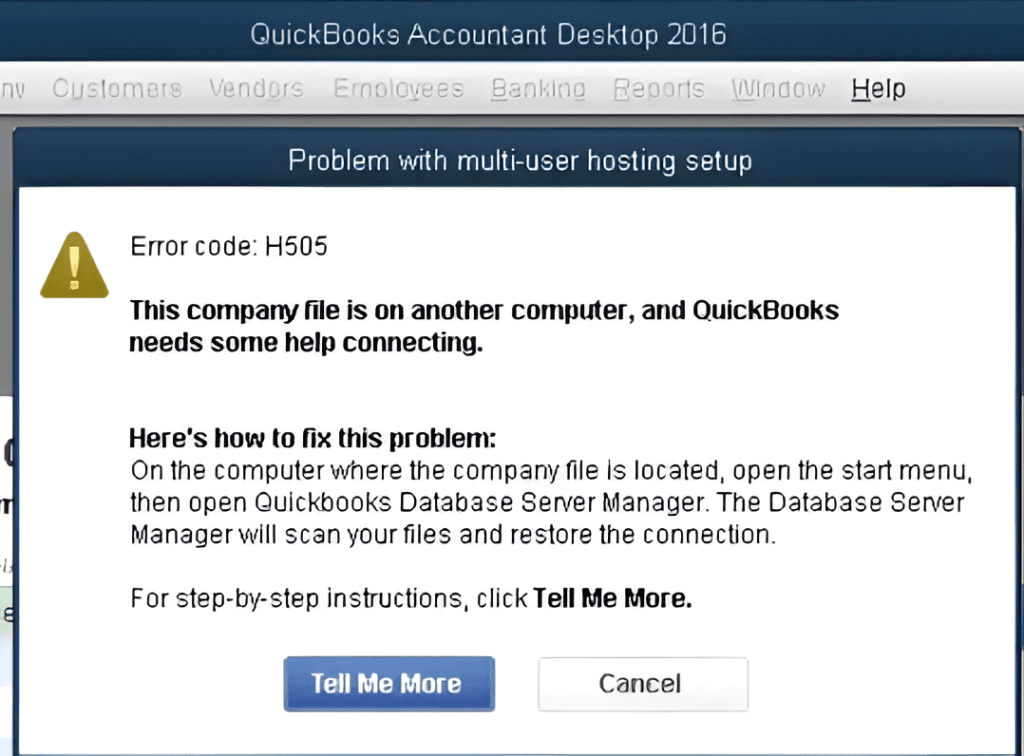
Key Symptoms of Error H505
- Error H505 triggers when opening a company file stored on a remote server.
- Workstations lose connection to the server mid-session.
- QuickBooks cannot detect the host computer on the network.
Quick Fixes for Error H505
- Verify that the host computer is powered on, connected to the network, and not in sleep mode
- Use the QuickBooks Tool Hub > Network Issues tool to diagnose connectivity problems
- Assign a static IP address to the server to prevent IP conflicts
- Confirm that Windows File Sharing is enabled on the host machine
- Reinstall or repair the QuickBooks Database Server Manager if services are not starting correctly.
Fix This Error As Well:- QuickBooks Error 6000 Series
General Troubleshooting Steps for All QuickBooks Multi-User Mode Issue
Regardless of which specific H-series error you encounter, the following general troubleshooting steps apply to most QuickBooks Multi-User Mode Issue and should be performed as a baseline before diving into error-specific fixes:
Use QuickBooks Tool Hub
Download latest QuickBooks Tool Hub. Navigate to the Network Issues tab and run the QuickBooks File Doctor. This tool automatically diagnoses and repairs many common network and file permission issues.
Update QuickBooks Desktop
Outdated versions often contain bugs that were fixed in later patches. Go to Help > Update QuickBooks Desktop and install all available updates on both the server and all workstations.
Verify Database Server Manager
On the host machine, open QuickBooks Database Server Manager, click Scan Folders, and ensure the folder containing your company file is listed. This forces the server to update its .ND files.
Check Folder Permissions
The Windows user account running QuickBooks on the server must have full read/write permissions to the folder where the company file is stored. Right-click the folder, go to Properties > Security, and confirm access.
Configure Windows Firewall Exceptions
QuickBooks relies on several specific ports to communicate across your network. Ensure that ports 8019, 56728, and 55378–55382 are open for both inbound and outbound traffic.
Temporarily Disable Antivirus/Security Software
Third-party antivirus programs frequently block QuickBooks network services. Temporarily disable these tools to determine if they are causing the Multi-User Mode error, then whitelist QuickBooks processes accordingly.
How to Prevent QuickBooks Multi-User Mode Errors?
Preventing QuickBooks Multi-User Mode Issue is far more efficient than troubleshooting them after they occur. Follow these best practices to maintain a stable multi-user environment:
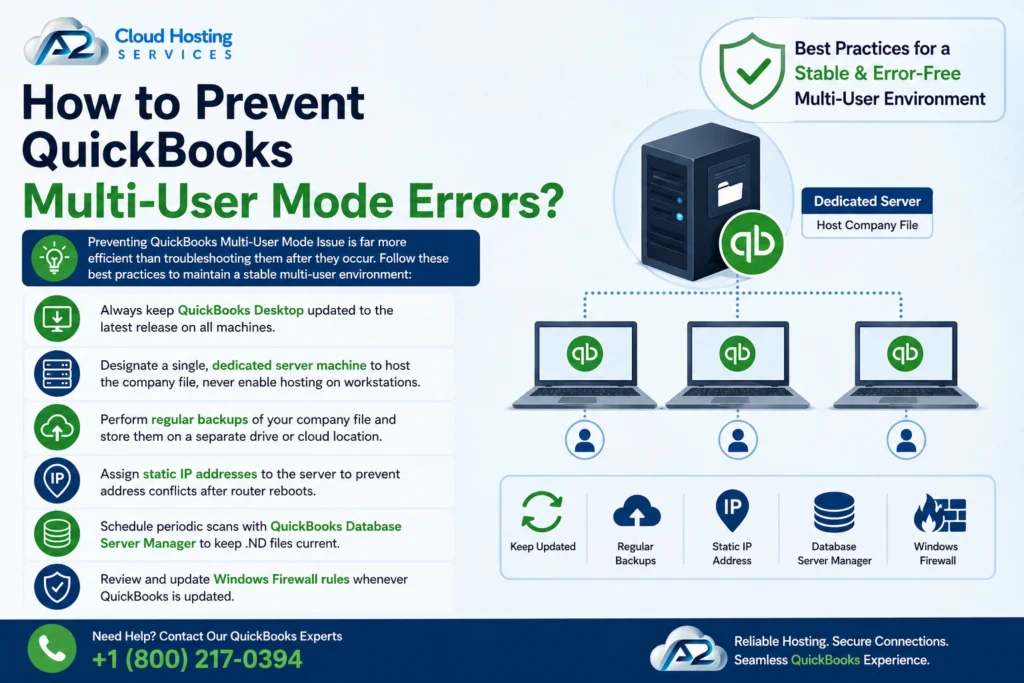
- Always keep QuickBooks Desktop updated to the latest release on all machines.
- Designate a single, dedicated server machine to host the company file, never enable hosting on workstations.
- Perform regular backups of your company file and store them on a separate drive or cloud location.
- Assign static IP addresses to the server to prevent address conflicts after router reboots.
- Schedule periodic scans with QuickBooks Database Server Manager to keep .ND files current.
- Review and update Windows Firewall rules whenever QuickBooks is updated.
Conclusion
QuickBooks Multi-User Mode errors, including Error H101, Error H202, Error H303, and Error H505, all share a common thread: they stem from disruptions in the network communication between your workstations and the host server. With the right understanding of how these errors work and a structured approach to troubleshooting, most issues can be resolved without the need for professional IT support.
Start with the general troubleshooting steps outlined above, then navigate to the dedicated solution page for your specific error code for deeper, step-by-step guidance. Keeping your QuickBooks environment updated, your network properly configured, and your hosting settings correctly assigned will eliminate the vast majority of QuickBooks Multi-User Mode Issue before they have a chance to disrupt your workflow.
The multi-user mode errors in QuickBooks can bring forth an array of issues if not addressed quickly. Therefore, if you are finding it difficult to resolve the error, it is highly recommended to reach out at +1-(800) 217-0394 for professional assistance.
Advanced external solutions:- Multi User Mode Issues | QuickBooks Community
FAQs
What are QuickBooks Multi-User Mode Errors Issue?
QuickBooks Multi-User Mode Errors occur when multiple users are unable to access the company file simultaneously over a network. These errors usually indicate issues with hosting, network configuration, or server communication.
What are the most common QuickBooks Multi-User Mode Errors?
Some common errors include H101, H202, H303, and H505. These typically occur when QuickBooks cannot connect to the server hosting the company file.
Can firewall settings trigger Multi-User Mode Errors?
Yes, firewall restrictions can block communication between systems, preventing QuickBooks from accessing the company file in multi-user mode.
How do I know if my system is set up for multi-user mode correctly?
Ensure that only the server computer has hosting enabled, QuickBooks services are running, and all workstations are properly connected to the network.
What is the role of QuickBooks Database Server Manager?
It helps manage network access to the company file and ensures that multiple users can connect to it without issues.

Brown Lopez is a Cloud Engineer and technical writer based in Austin, USA, who enjoys turning complex cloud ideas into clear, simple insights. With solid experience in cloud architecture and real-world projects, he loves creating practical content that helps professionals understand, build, and improve their cloud solutions with confidence.