
 ChatGPT
 Perplexity
 Grok
Grok Google AI
 Claude
In the diverse range of accounting solutions, QuickBooks stands out as one of the most preferred tools. This program is regularly updated to ensure users have access to the latest features, enhanced security measures, and bug fixes. But, there are times when the updating does not go on smoothly, and hence the QuickBooks update error 12031 occurs.
This issue is because the application cannot establish a secure connection to the update server. This may be caused by network issues, incorrect Internet settings, firewall issues, or misconfigured SSL settings. Because of this issue, the users will not be able to download and install the payroll application or the latest version of the program.
The problem can be found below, along with more information on what may be causing it
Reasons Behind QuickBooks Update Error 12031
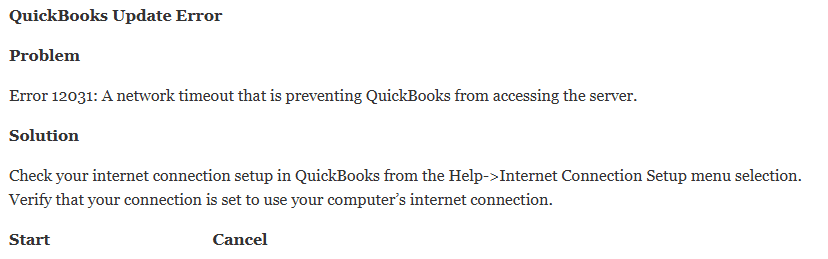
QuickBooks update error 12031 is a problem that occurs due to a wide variety of causes. The first step to resolution is to identify the cause of the error.
Some Possible Causes Are:
- Bad internet connectivity.
- Firewall or antivirus software is interfering with QuickBooks services.
- Incorrect SSL settings in Internet Explorer.
- Expired digital certificates.
- Timeout due to long waiting time for connecting to the QuickBooks update server.
- Damaged QuickBooks installation files.
- Internet security settings issues.
- Problems with Windows network configuration.
What Can You Notice After Getting QuickBooks Desktop Update Error 12031
When the QuickBooks internet connection error 12031 hits, users usually see these issues: The software freezes while updating, payroll updates fail, and the error code 12031 shows up. Software updates stop suddenly, and the program performs really slowly during update attempts. QuickBooks can’t connect to the internet, and there are lots of update timeout messages, too.
How to Solve Error Code 12031 on QuickBooks?
Following is a list of some solutions that can help you resolve the issue.
Solution 1: Ensure You Have an Internet Connection
In order to make sure that you download updates, an internet connection is required.
Steps Involved:
- Open up your browser.
- Go to a website.
- Ensure that you have an internet connection.
- Turn on/off your internet modem/router.
- End all unnecessary applications utilizing network resources.
- Retry downloading QuickBooks updates.
If this fixes your problem, then you can say that your problem was associated with connectivity issues.
Solution 2: Change Firewall/Antivirus Settings
Security tools may prevent QuickBooks from connecting to servers.
Step-by-Step Guide:
- Open your antivirus or firewall software.
- Navigate to the list of programs that were blocked by the security tool.
- Include QuickBooks and its services in the list of exceptions.
- Make sure that everything is properly saved.
- Restart QuickBooks and try updating.
Solution 3: Run the QuickBooks Program Diagnostic Tool
Another way is to use QuickBooks Tool Hub, which comes with built-in fixes for common issues. Here’s how:
Download and install the latest QuickBooks Tool Hub. Open it up and choose Program Problems, then pick QuickBooks Program Diagnostic Tool. Let it run and then restart your computer. Open QuickBooks and try installing the updates again; the tool should have fixed anything that was damaged.
Solution 4: Run Quick Fix My Program
Also, within the QuickBooks Tool Hub, there’s a Quick Fix My Program option. Just open it, wait for it to fix things, and then try launching and updating QuickBooks again.
Solution 5: Reset QuickBooks Updates
If you are unable to take the above steps, follow the steps below to reset QuickBooks Desktop updates.
Resetting the QuickBooks update settings may resolve the problem sometimes. QuickBooks might not be able to receive the new files properly because of corrupted update settings. Here are the steps to take to fix the QuickBooks updates:
Open up QuickBooks Desktop, and then select Help, Update QuickBooks Desktop. Then click on the Update Now tab, Reset Update, and Get Updates. Once downloaded, wait for the download to finish and restart QuickBooks. This clears out damaged downloads and gets new update files.
Solution 6: Repair QuickBooks via Control Panel
If this doesn’t fix the problem, then repair the software. Here’s how:
1. Shut down QuickBooks,
2. Go to the Windows Control Panel.
3. Click on Programs and Features,
4. Find QuickBooks Desktop,
5. Click Uninstall/Change, select Repair.
6. Follow the prompts.
7. Restart your computer.
Repeat the process of updating after repairs are done.
Solution 7: Do a Clean Install of QuickBooks.
If you have to, do a clean install:
First, make a backup of your company file. Then uninstall QuickBooks. Go to Tool Hub, rename your installation folders, and reinstall QuickBooks. Lastly, turn on the software and install updates.
This technique is ideal for problems with updates.
Preventive Measures to Avoid QB Error 12031
The following are preventive measures to avoid QuickBooks update error 12031.
It is better to avoid errors in the update process than to have to deal with errors over and over again. Adhere to these good practices.
Regularly update QuickBooks.
Ensure updates are done in time for compatibility with current Windows and security.
Keep a Reliable Internet Connection.
Have uninterrupted internet access when downloading software or payroll updates. Please do so on a stable internet connection.
Monitor Firewall and Antivirus Settings.
Routine monitor security software setups to keep QuickBooks trusted.
Update Windows Frequently
Microsoft updates often include networking improvements that support QuickBooks functionality.
Verify SSL and TLS Settings
Check browser security settings periodically, especially after major Windows updates.
Perform Routine System Maintenance
Regular disk cleanup, malware scans, and software optimization help prevent conflicts.
Create Regular Backups
Backing up company files protects critical business data if software issues occur.
Use Genuine QuickBooks Software
Ensure you are using a properly licensed and supported version of QuickBooks Desktop.
Why QuickBooks Updates Are Important
Some users postpone updates after experiencing errors. However, staying updated provides significant benefits:
- Enhanced security protection
- Improved software stability
- Payroll tax table updates
- Better performance
- Compliance with changing regulations
- Access to new features
- Reduced risk of data corruption
Regular updates help maintain the efficiency and security of your accounting environment.
Conclusion
QuickBooks update error 12031 is primarily caused by problems with the communication between QuickBooks Desktop and Intuit’s update server. This error may occur due to flaky internet, firewall blocking stuff, antivirus issues, SSL security issues, or a damaged file.
The good news is, however, that sometimes it’s not too hard to fix. Typically, Internet connection testing, browser settings, firewall rules, QuickBooks Tool Hub, resetting the update parts, or software fixations will help.
With the tips found here, you can avoid many of the update hassles and maintain a smooth-running QuickBooks. Did not work for you after applying the above? If you have more complicated network or system issues, you may need to contact a certified QuickBooks expert to help you resolve the issue.
External solutions:- QuickBooks Desktop Update Errors
FAQ
What is QuickBooks update error 12031?
QuickBooks update error 12031 is a network issue where QuickBooks fails to connect securely with Intuit’s update servers.
Can poor internet cause error 12031?
Absolutely, weak or inconsistent internet leads to this problem often.
Do antiviruses impact QuickBooks updates?
Yep, they can block QuickBooks services, stopping them from talking to the update servers.
Does the QuickBooks Tool Hub help with error 12031?
It can. Using tools like Program Diagnostic and Quick Fix My Program might fix damaged bits, causing update issues.
Do I have to reinstall QuickBooks because of error 12031?
Not necessarily. Many sort out the problem by tweaking internet settings, fiddling with firewalls, or running diagnostics. You’d only want to reinstall as a final option.
How to avoid update errors?
Keeping a rock-solid internet, updating Windows, setting up firewall rules correctly, and keeping QuickBooks up-to-date does the trick. This way, you avoid most update headaches.

Brown Lopez is a Cloud Engineer and technical writer based in Austin, USA, who enjoys turning complex cloud ideas into clear, simple insights. With solid experience in cloud architecture and real-world projects, he loves creating practical content that helps professionals understand, build, and improve their cloud solutions with confidence.