
 ChatGPT
 Perplexity
 Grok
Grok Google AI
 Claude
QuickBooks tool hub not working – If you are here, you are probably in that exact mood where you just want QuickBooks to open, run payroll, send an invoice, or finish a reconciliation. And Tool Hub is supposed to be the simple fix. Click a button, problem goes away.
Except it is not opening. Or it opens and does nothing. Or it freezes on “Loading.” Or you click Company File Issues and it just sits there like it is thinking about it.
Good news. In most cases you can get QuickBooks Tool Hub working again in about 10 minutes. Not “reinstall Windows” level. More like, close a few things, repair a couple of components, reinstall cleanly, and move on with your day.
This guide is written for Windows users, since Tool Hub is a Windows utility.
Before you start, do this quick 30 second check
This sounds obvious, but it saves time because a lot of Tool Hub issues are not actually Tool Hub issues.
- Restart your PC. Yes, really.
- Confirm Windows version: Tool Hub needs Windows 10 or later in most environments. If you are on Windows 7 or 8.1, you are going to have a bad time.
- Make sure QuickBooks is closed: QuickBooks Desktop, QuickBooks Database Server Manager, and any stuck “QB” tasks.
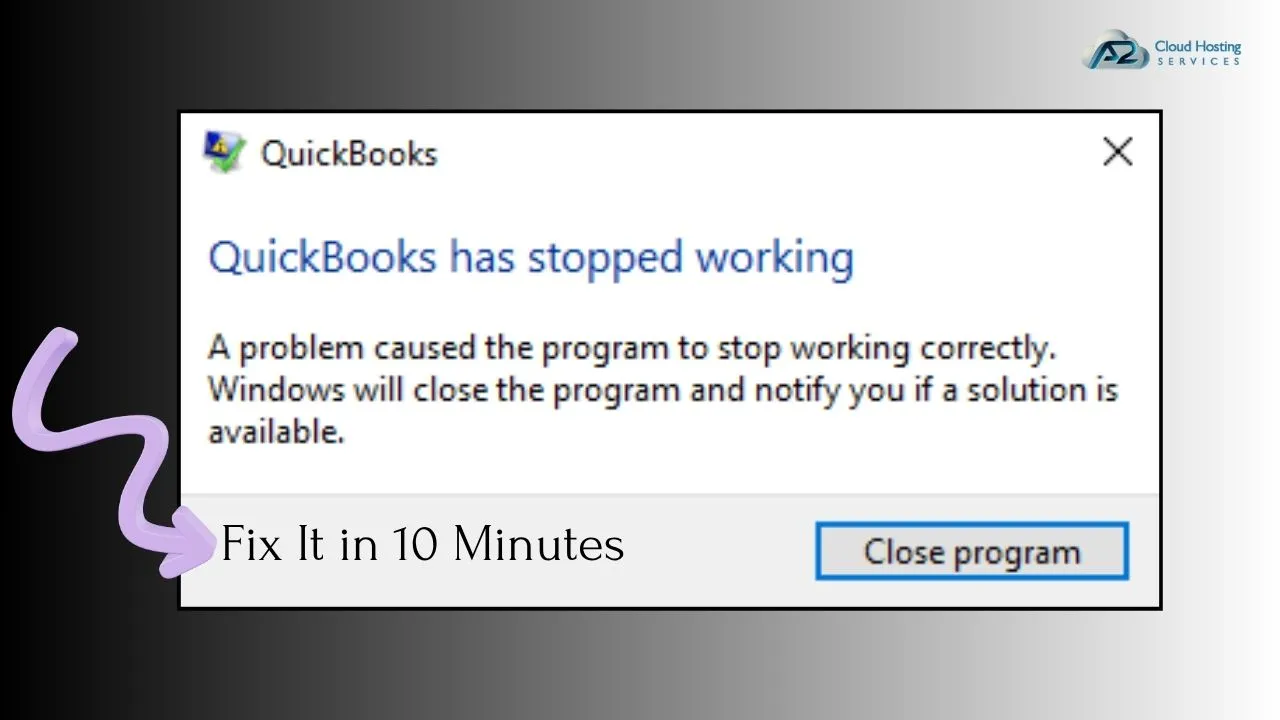
If you restart and Tool Hub suddenly opens, you are done. If not, keep going.
What “Tool Hub not working” usually means
People say “QuickBooks Tool Hub not working” but it can mean a few different failures:
- Tool Hub will not install at all.
- Tool Hub installs but will not open.
- Tool Hub opens but buttons do nothing.
- Tool Hub opens but crashes immediately.
- Tool Hub opens but freezes or hangs on certain tabs.
- Tool Hub runs a tool, but the tool fails because a Windows component is broken.
The fixes below cover all of those.
10 minute fix plan If QuickBooks Freezes on “Loading. (do these in order)
The listed below steps will help you fix the issue of QuickBooks tool hub not working in the most effective way possible. The majority of people will get their QB tool hub up and running by the end of step 4.
Step 1: End Tool Hub and QuickBooks tasks (1 minute)
Tool Hub can get stuck in the background. Same with QuickBooks.
- Press Ctrl + Shift + Esc to open Task Manager.
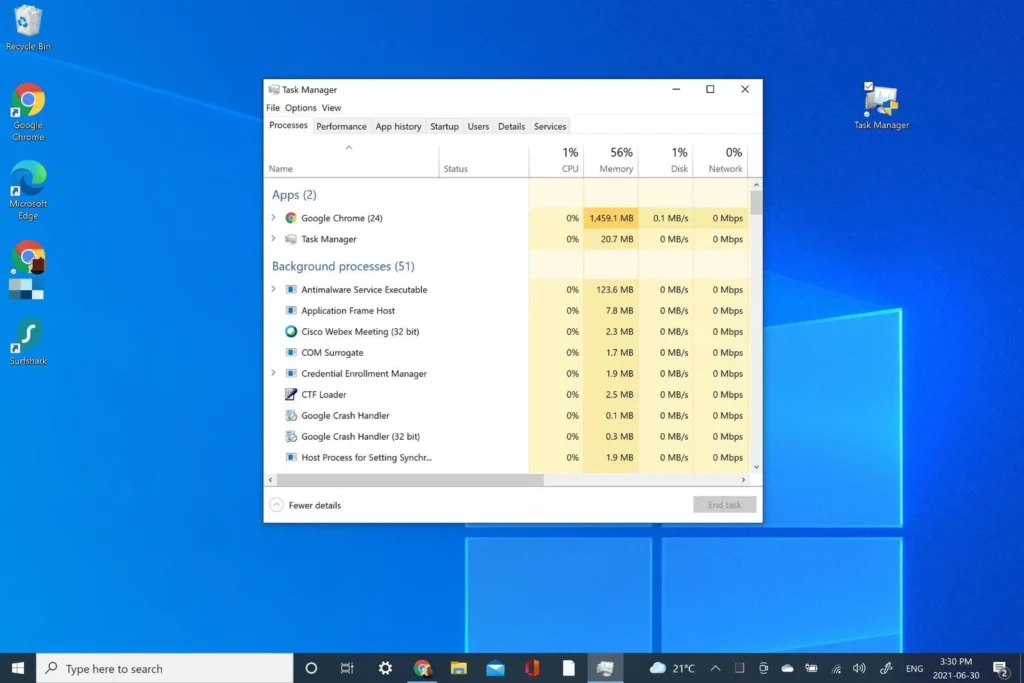
- Click More details if you see the small view.
- Under Processes, end anything like: QuickBooks Tool Hub, QuickBooks, QBDBMgrN.exe, QBDBMgr.exe, QBW32.exe, or Intuit Update Service.
- Now try opening Tool Hub again.
If the QuickBooks Tool Hub exe not working is not the issue, you can follow along to the next step.
Step 2: Run Tool Hub as administrator (30 seconds)
Tool Hub needs permissions to repair services and components.
- Right click the QuickBooks Tool Hub icon.
- Click Run as administrator.
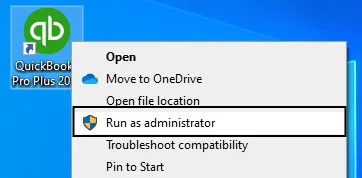
If it opens now and the buttons work, great. If it opens but buttons still fail, still continue because you might have a corrupted install.
Step 3: Verify you are using the latest Tool Hub (1 minute)
A lot of older Tool Hub installers floating around are outdated. The app updates sometimes, but if you installed it ages ago, it may be messy, and it is likely to be the reason for QuickBooks Tool Hub not responding.
If Tool Hub opens:
- Look for an About section or version info. If it looks old, just reinstall cleanly in Step 4.
If Tool Hub does not open:
- Do Step 4 anyway. You will download a fresh installer.
Step 4: Clean reinstall QuickBooks Tool Hub (4 minutes)
This is the fix that works most often if your QuickBooks Tool Hub Not Working.
4A. Uninstall Tool Hub
- Press Windows + R, type appwiz.cpl, press Enter.
- Locate QuickBooks Tool Hub.
- Click Uninstall.
4B. Delete leftover folders (optional but helpful)
After uninstalling, you will need to manually browse these locations and locate the Tool Hub folders and delete them. In case you do not follow this step, you will continue to face the QuickBooks Tool Hub has stopped working issue.
The paths that you will need to check are:
- C:\Program Files (x86)\Intuit\QuickBooks Tool Hub\
- C:\ProgramData\Intuit\
- C:\Users\<YourUser>\AppData\Local\Intuit\
You might not have all of them. That is fine. If Windows blocks deletion, just move on.
4C. Download and install again
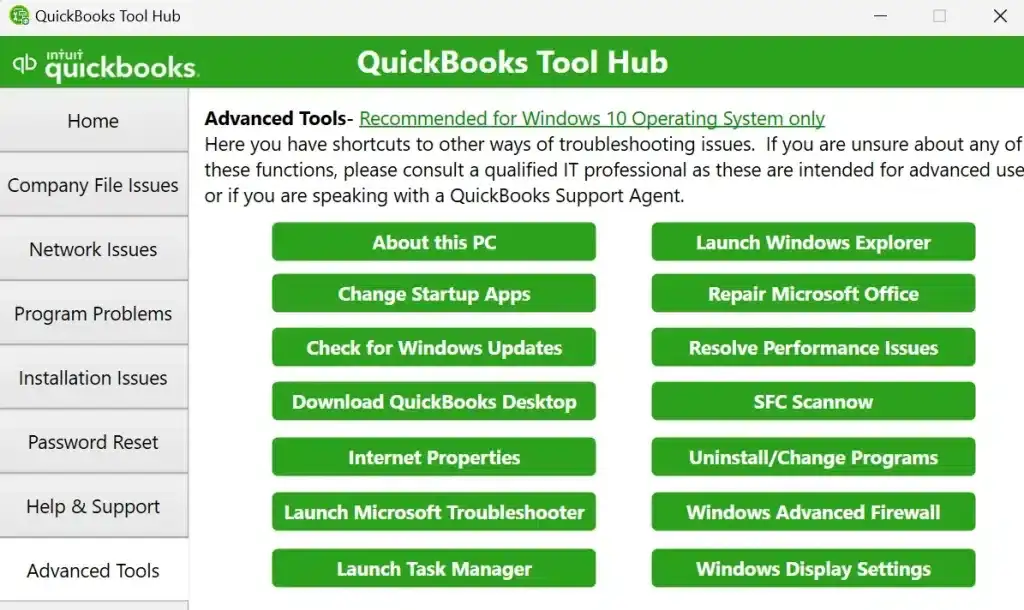
- Download QuickBooks Tool Hub from Intuit’s official site, not a random download mirror.
- Save the installer to your Desktop.
- Right click the installer and choose Run as administrator.
- Finish install, then open Tool Hub.
If Tool Hub opens and works now, you are done.
If the QuickBooks tool hub crashes, does not open, or it opens and freezes, go to Step 5.
Step 5: Repair Microsoft .NET Framework (2 to 4 minutes)
Tool Hub and QuickBooks Desktop both lean heavily on .NET. When .NET is damaged, you see weird symptoms like the Tool Hub window opening blank, hanging, or buttons failing.
Quick .NET repair
- Press Windows + R, type control, press Enter.
- Go to Programs > Programs and Features.
- Click Turn Windows features on or off on the left.
- Look for .NET Framework 3.5 (includes .NET 2.0 and 3.0) and .NET Framework 4.8 Advanced Services (or 4.x).
- If they are unchecked, check them.
- If they are already checked, uncheck them, click OK, and let Windows apply changes. Then restart your computer.
- After restart, go back to Windows features, re-check the .NET Framework options, and apply the changes again.
Then try opening Tool Hub again.
If you cannot change those features because your PC is managed by IT, you may need admin rights or help from your admin. But still, don’t skip it. .NET is a big one.
Step 6: Install or repair Microsoft Visual C++ Redistributables (2 minutes)
This is another boring Windows dependency that breaks Tool Hub and QuickBooks in quiet ways.
What to do:
Install or repair the Microsoft Visual C++ Redistributable packages (especially 2015 to 2022). If you already have them, choose Repair in Apps and Features, one by one.
This step can be quick if you already have everything installed. If you do not, it can take a little longer depending on downloads.
After repairing, restart and test Tool Hub.
If you are still broken, ok. Now we move into the “it is not really Tool Hub, it is Windows environment or security software” bucket.
If Tool Hub won’t open at all, try these targeted fixes
Fix A: Tool Hub opens then closes immediately
The issue of QuickBooks Tool Hub won’t open usually points to a corrupted user profile cache or a security block.
Try this:
- Right click Tool Hub icon > Open file location.
- Right click the Tool Hub executable > Properties.
- Go to Compatibility tab.
- Check Run this program as an administrator.
- Click Apply.
Then temporarily disable “Compatibility mode” if it is enabled. Compatibility mode can make modern apps act weird.
Also, if you have aggressive antivirus, keep reading below.
Fix B: Tool Hub is stuck on “Loading” or a blank white screen
That is usually .NET, Windows Installer service issues, or a blocked UI render.
Do these:
- Do the .NET step again more carefully (Step 5).
- Make sure Windows Updates are not half applied. Pending updates can break components.
- Restart.
If that still fails, try opening Tool Hub from a different Windows admin user profile if you have one. Sometimes it is only broken for one profile. Doing so will help you fix the QuickBooks Tool Hub blank screen.
Fix C: Tool Hub installs, but buttons don’t do anything
That can be permissions, or QuickBooks services are stuck.
Try:
- Run Tool Hub as admin.
- Reboot.
- Open Tool Hub and immediately go to Program Problems and run Quick Fix My Program.
If the “Quick Fix” tool does not launch, reinstall the Tool Hub again and make sure security software is not causing the QuickBooks Tool Hub not installing.
Security software blocks Tool Hub more than people think
If you use Bitdefender, Norton, McAfee, Sophos, Webroot, or even Windows Defender, their strict ransomware protection may restrict the Tool Hub’s access to the necessary permissions.
Common signs that indicate that the security software has blocked Tool Hub include:
- Tool Hub opens, but tools fail instantly.
- A tool runs, but cannot access the company files.
- Nothing happens when you click a button.
What to do in a safe, reasonable way:
- Temporarily disable the antivirus and then run the Tool Hub.
- Or better, add exceptions for Intuit and QuickBooks folders.
Typical QuickBooks locations to exclude
- C:\Program Files\Intuit\
- C:\Program Files (x86)\Intuit\
- C:\ProgramData\Intuit\
- C:\Users\Public\Documents\Intuit\QuickBooks\Company Files\ (or your custom company file folder location)
In case disabling the antivirus makes Tool Hub function again, you will first need to add Tool Hub in the exclusions, and then turn on the antivirus.
When Tool Hub works but your QuickBooks problem still isn’t fixed
This happens a lot. Tool Hub is not one single repair. It is a launcher for different repair modules. So you might get Tool Hub opening fine, but you still cannot open the company file, or QuickBooks keeps crashing, or payroll update fails.
Here is how to use Tool Hub in a way that actually makes sense.
If QuickBooks won’t open or keeps freezing
In Tool Hub, follow these steps:
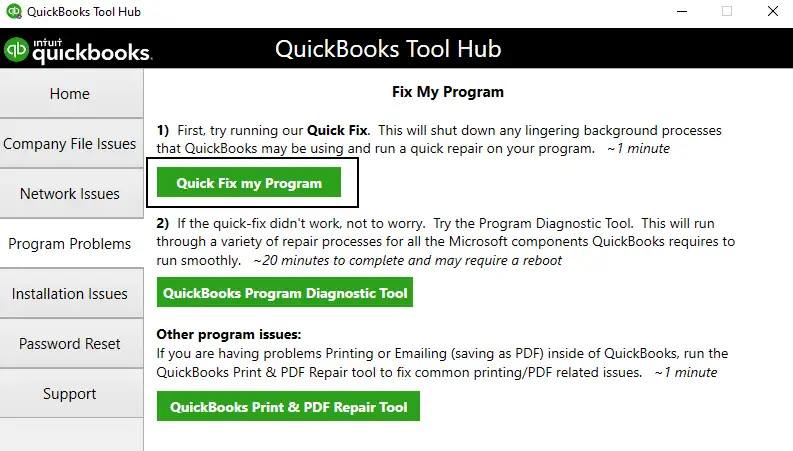
- Go to Program Problems
- Click Quick Fix my Program
- Then click QuickBooks Program Diagnostic Tool (if available in your version)
Then restart your PC and try QuickBooks again.
If you can’t open your company file, or you get file errors
In Tool Hub:
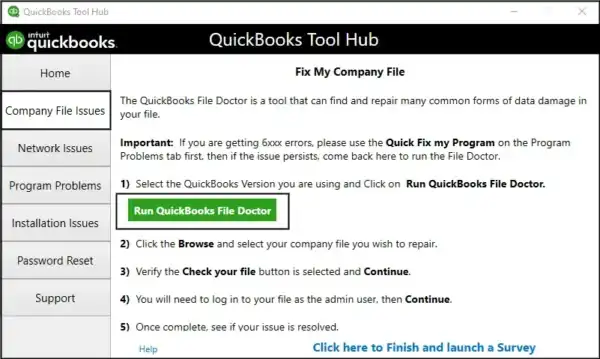
- Go to Company File Issues
- Run Quick Fix my File
- If the problem is still there, run QuickBooks File Doctor
A small note because this trips people up. File Doctor can take a while and it can look like it is stuck. Give it time. If it truly hangs for 20 to 30 minutes with no activity, then yes, it is stuck.
If you are getting QuickBooks Tool Hub installation errors or update errors
In Tool Hub:
- Go to Installation Issues
- Run QuickBooks Install Diagnostic Tool
If it reports issues, reboot and try the QuickBooks update again.
If you have network, multi user, or hosting issues
In Tool Hub:
- Go to Network Issues
- Run QuickBooks Database Server Manager
- Scan the folder where your company file lives
Read More: QuickBooks Hosting Mode is Off? Here’s Your Ultimate Fix to Get Back to Multi-User Mode!
If you are in a multi user environment, confirm:
- The host machine is actually hosting.
- Firewall ports are open for your QuickBooks year version.
- The company file is not being opened across a flaky VPN connection.
Tool Hub helps, but network issues are their own thing.
Note: QuickBooks Premier Hosting | QuickBooks Enterprise Hosting | QuickBooks Pro Hosting
The 3 most common “hidden” causes that waste time
1. You are installing Tool Hub without admin rights
Even if you are “the only user,” your Windows account may not be a true local admin. In this case, Tool Hub will be installed on your system, but will fail to perform repairs. In order to resolve the QuickBooks Tool Hub admin permissions issue, you will need to:
- Install and run as admin.
- If you are on a work computer, ask IT to install it.
2. Windows Installer service is broken
If the Tool Hub installation is failing with messages like “Windows Installer service is broken,” then it is safe to assume that your Windows Installer is disabled.
To perform a quick fix for this issue, you will need to:
- Press Windows + R, type services.msc, press Enter.
- Find Windows Installer.
- Startup type should usually be Manual.
- If it is disabled, set it to Manual and start it.
Then reinstall Tool Hub.
3. Your Tool Hub shortcut points to nowhere
Sometimes people copy shortcuts around, or restore from backup, and the shortcut is broken. This is also one of the most common reasons behind QuickBooks Tool Hub not launching.
Fix:
- Search Start Menu for QuickBooks Tool Hub.
- Open file location, confirm the actual exe exists.
- If not, reinstall.
A simple “nuclear but still safe” reset that fixes stubborn cases
If you tried everything above and Tool Hub still won’t behave, do this set in order. This can take more than 10 minutes depending on your PC speed, but it is still the clean path without doing anything extreme.
- Uninstall Tool Hub.
- Reboot.
- Run Windows Update and apply all updates.
- Repair .NET Framework features (Step 5).
- Repair Visual C++ redistributables.
- Reinstall Tool Hub as admin.
- Reboot again.
- Run Tool Hub as admin and run the specific repair tool you need.
It is a little annoying, yes. But it eliminates most environment issues.
Conclusion
Still stuck even after trying everything to fix the QuickBooks tool hub not working problem. Yeah, that’s frustrating — but don’t stress. Sometimes these errors just don’t go away on the first try, and that’s totally okay. We’ve got your back. In that case, you need expert help to fix QuickBooks tool hub not working or crashing out? Our experienced team at A2CloudHostingServices can fix technical, installation, update, and data issues. Call +1(800) 217-0394 or chat with our experts anytime.
Quick FAQ (the stuff people ask in a panic)
Is QuickBooks Tool Hub safe to use?
Yes, if you download it from Intuit’s official site. Avoid third party download sites.
Does Tool Hub work on Mac?
No. Tool Hub is for Windows. QuickBooks for Mac has different troubleshooting steps.
Do I have to uninstall QuickBooks Desktop to fix Tool Hub?
Usually no. Tool Hub can be fixed independently. Only move toward reinstalling QuickBooks Desktop if the install itself is corrupted and Install Diagnostic tool suggests it.
Tool Hub opens but File Doctor can’t find my company file, why?
Usually you are browsing to the wrong folder, or the file is on a server path you don’t have permissions to access. Map the drive properly, or copy the file locally as a test.
Can I just skip Tool Hub and run tools manually?
Some tools can be run separately, but Tool Hub is the easiest way to launch the right diagnostics for your case. If Tool Hub is broken, that is why we fixed it first.
Wrap up, what I would do if I were at your computer
If QuickBooks Tool Hub is not working, I take the listed below steps.
End tasks > Run as admin > Clean reinstall Tool Hub > Repair .NET > Repair Visual C++ > Check antivirus blocks
That gets most people back up fast. And once Tool Hub opens, use the right tab for the problem you actually have, because “Tool Hub not responding” is usually just the first layer of the issue.
If you tell me what happens when you open Tool Hub, like does it not open at all, does it freeze, or do the buttons fail, and what Windows version you are on, I can narrow it down to the most likely fix in one or two steps.
Why won’t QuickBooks Enterprise Tool Hub open or respond when I try to use it?
QuickBooks Tool Hub may not open or respond due to background processes stuck running, outdated or corrupted installations, or broken Windows components like .NET Framework or Visual C++ Redistributables. To fix this, you can end any QuickBooks and Tool Hub tasks via Task Manager, run Tool Hub as administrator, verify you have the latest version, reinstall Tool Hub cleanly, and repair essential Windows components as outlined in the 10-minute fix plan.
How can I quickly fix QuickBooks Desktop Tool Hub issues on Windows?
Most QuickBooks Tool Hub problems can be resolved in about 10 minutes by following these steps: 1) End all QuickBooks and Tool Hub related tasks in Task Manager; 2) Run Tool Hub as administrator; 3) Confirm you’re using the latest version; 4) Uninstall and then cleanly reinstall Tool Hub; 5) Repair Microsoft .NET Framework features via Windows settings; and 6) Install or repair Microsoft Visual C++ Redistributables. These steps address common causes of freezing, crashing, or unresponsiveness.
What Windows version is required for QuickBooks Tool Hub to work properly?
QuickBooks Tool Hub requires Windows 10 or later to function correctly in most environments. Using older versions like Windows 7 or 8.1 often leads to compatibility issues that prevent Tool Hub from opening or running properly. If you are on an unsupported Windows version, upgrading your operating system is recommended for optimal performance.
Why do QuickBooks Tool Hub buttons sometimes do nothing when clicked?
Button clicks in QuickBooks Tool Hub may fail if the application is running with insufficient permissions or if its installation is corrupted. Running Tool Hub as an administrator often restores proper functionality. Additionally, ensuring you have the latest version installed and performing a clean reinstall if necessary can resolve button responsiveness issues caused by corrupted files.
How do I repair Microsoft .NET Framework to fix QuickBooks Tool Hub problems?
To repair .NET Framework which is critical for QuickBooks Tool Hub: Open Control Panel > Programs > Programs and Features > Turn Windows features on or off. Check if ‘.NET Framework 3.5’ and ‘.NET Framework 4.8 Advanced Services’ (or similar) are enabled. If they are checked, uncheck them and apply changes, restart your PC, then re-enable them and apply changes again. This process repairs .NET components that might cause freezing, blank windows, or button failures in Tool Hub.
What should I do if uninstalling QB Tool Hub leaves leftover folders?
After uninstalling QuickBooks Tool Hub via ‘appwiz.cpl’, it’s helpful to delete leftover folders located at ‘C:\Program Files (x86)\Intuit\QuickBooks Tool Hub’, ‘C:\ProgramData\Intuit’, and ‘C:\Users<YourUser>\AppData\Local\Intuit’ if they exist. Removing these residual files helps ensure a clean reinstall. If Windows blocks deletion of these folders, you can skip this step and proceed with downloading and installing the latest version of Tool Hub from Intuit’s official website.

Brown Lopez is a Cloud Engineer and technical writer based in Austin, USA, who enjoys turning complex cloud ideas into clear, simple insights. With solid experience in cloud architecture and real-world projects, he loves creating practical content that helps professionals understand, build, and improve their cloud solutions with confidence.