
 ChatGPT
 Perplexity
 Grok
Grok Google AI
 Claude
If you use QuickBooks Desktop long enough, you eventually hit the annoying issues. Company file won’t open. Program freezes at “Loading.” Printer stops responding right when you’re trying to send invoices. A random error code pops up and now you’re googling like it’s your second job.
What is QuickBooks Tool Hub?
QuickBooks Tool Hub is a free, all-in-one Windows application developed by Intuit to help fix common issues in QuickBooks Desktop. Instead of hunting for separate downloads like QuickBooks File Doctor, Install Diagnostic Tool, Print Repair, and so on. You open Tool Hub, click the category, run the fix. That’s the whole idea. This guide is specifically about download QuickBooks Tool Hub the right way, from the official source, plus how to install it and what to run for the most common problems.
If you only do one thing from this article, do this: download QuickBooks Tool Hub latest version from given link.
This is the QuickBooks Tool Hub download link of the latest version (1.6.0.8). That page is the safest source because it’s controlled by the software publisher and typically provides the latest Tool Hub version.
If you found Tool Hub on other sites, it might still be legit, but you’re adding risk for no reason. For something that touches your accounting software, just stick to official.
What are the System Requirements (quick check)
Before you install, make sure you’re on:
- Windows 10 or Windows 11 (recommended)
- Admin access on the computer (or at least permission to install QuickBooks Tool Hub apps)
- A stable internet connection to download and run certain components
Tool Hub is lightweight. The bigger deal is having the right Windows permissions.
How to download and install QuickBooks Tool Hub (step by step)
Here’s the clean process without any added tricks for how to download QuickBooks Desktop Tool Hub.
- Open the official Intuit link above.
- Download QuickBooks Tool Hub.exe.
- Save it somewhere easy to find, like your Downloads folder or Desktop.
- Close QuickBooks Desktop (important).
- Double click the downloaded file to start installation.
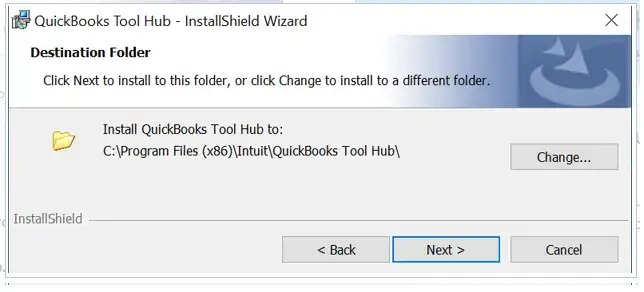
- Follow the prompts to accept the license agreement and install.
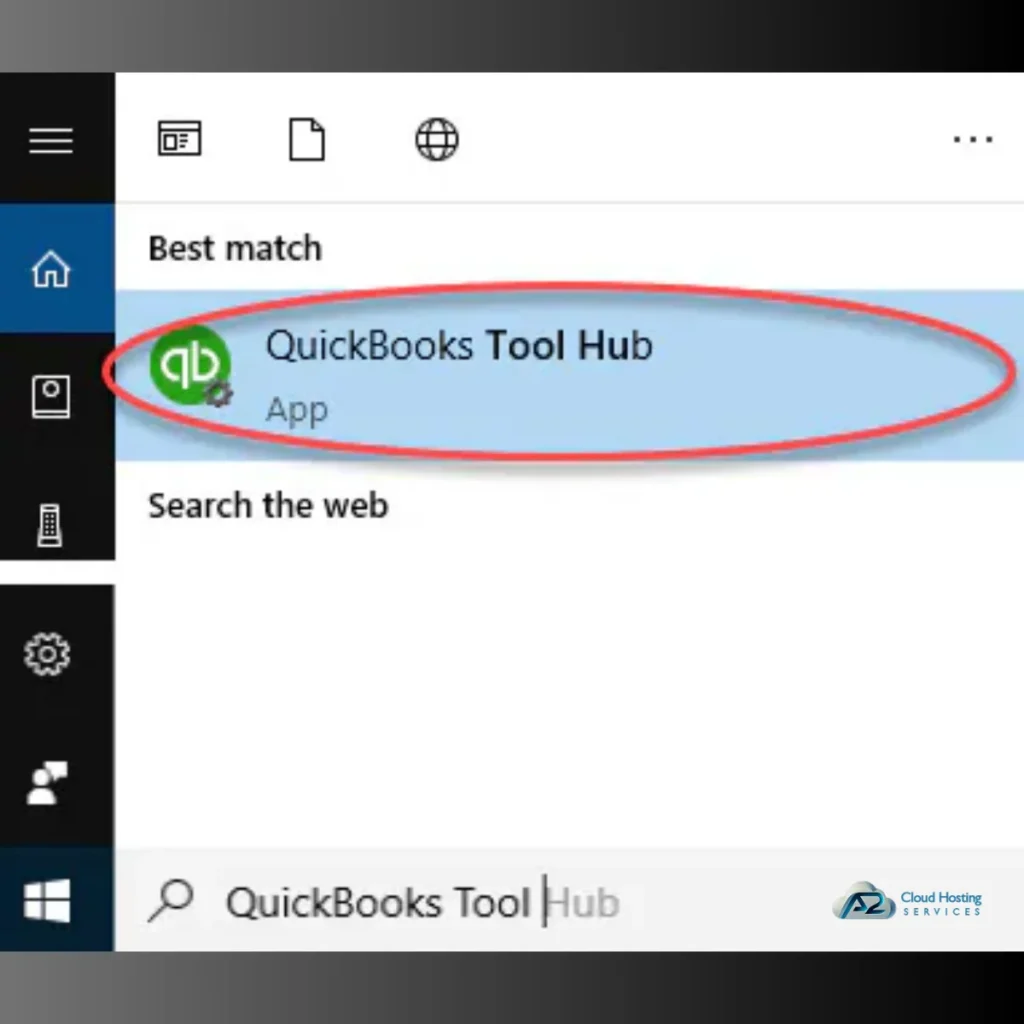
- Once installed, open it from the Desktop shortcut or from the Start menu by searching QuickBooks Tool Hub.
If Windows asks for permission, click Yes. After the Intuit QuickBooks Tool Hub download, you will need to provide system access to run repair utilities.
If the QuickBooks Tool Hub Installer fails
A few common reasons:
- You’re not logged in as admin
- Antivirus blocked the installer
- The download didn’t complete correctly
Quick fix attempt:
- Right click the installer file and choose Run as administrator
- Re download from the official page if the file seems corrupted
- Temporarily pause aggressive antivirus scans during install (then turn back on)
How to use QuickBooks Tool Hub (What Each Repair Tool Does)
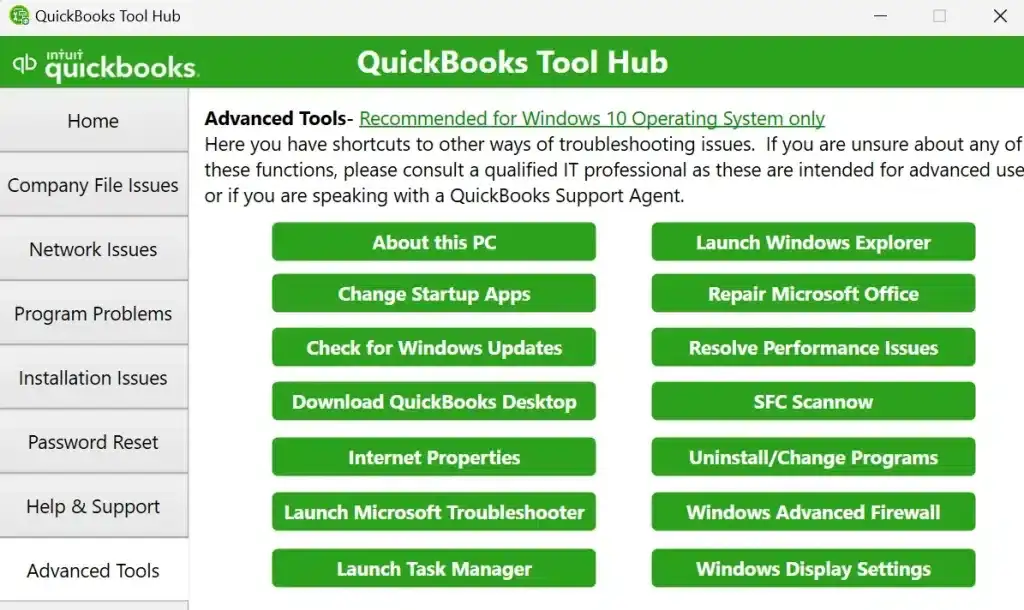
When you open Tool Hub, you’ll see categories. Each one runs a set of fixes. Below is what they do and when you should use them.
1) Company File Issues (File Doctor)
This is where most people end up.
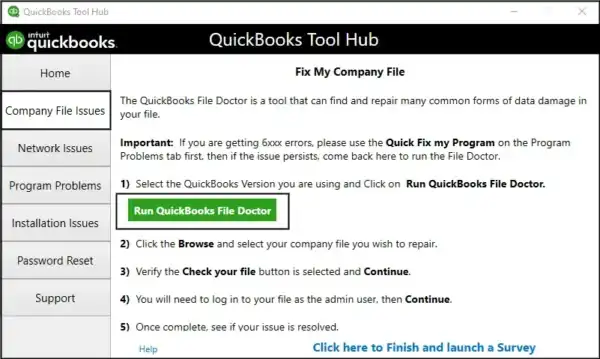
Use it when:
- Company file won’t open
- You get errors like H202, H505, 6000 series
- File is on a network and QuickBooks can’t see it
- Data damage is suspected
What to do
- Open QuickBooks Tool Hub
- Click Company File Issues
- Click Run QuickBooks File Doctor
- Select your company file (or browse to it)
- Choose the option related to file repair or network issues
- Enter your QuickBooks admin password when asked
Do note that the File Doctor can take time, especially when scanning large company files. Therefore, be patient. Also, sometimes it may even look stuck, when in reality it is working just as it should.
2) Program Problems (Quick Fix my Program)
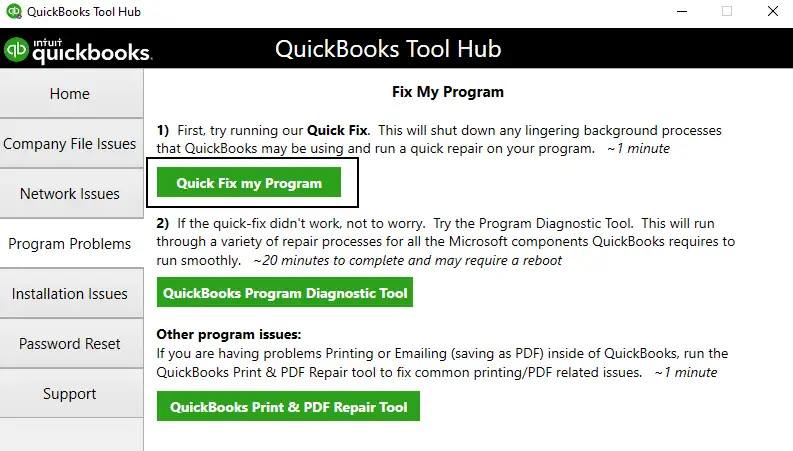
Use it when:
- QuickBooks freezes
- QuickBooks stops responding
- QuickBooks closes unexpectedly
- Performance is weird, sluggish, glitchy
What to do:
- Tool Hub → Program Problems
- Click Quick Fix my Program
This will close background processes and will, simultaneously, start repairing common program components. As the solution is quick and reliable, it should be the first step you take before running anything extreme.
3) Installation Issues (Install Diagnostic Tool)
If QuickBooks Desktop won’t install, won’t update, or gets stuck midway, this is the section.
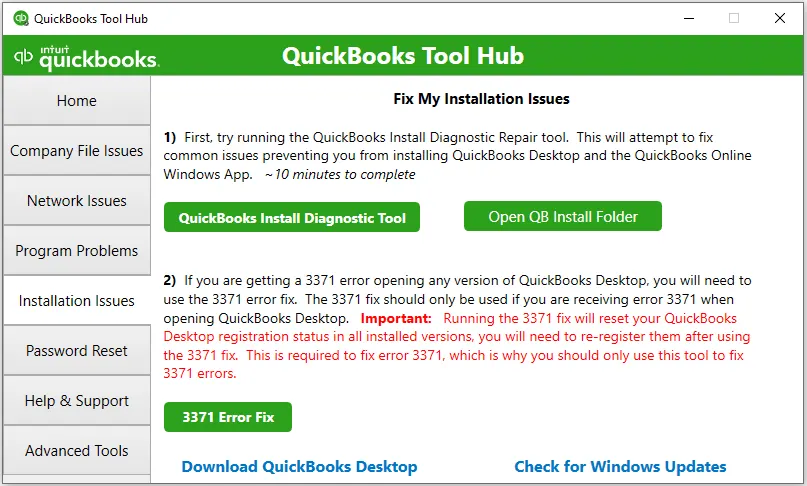
Use it when:
- Update won’t complete.
- You see installation errors (including MSXML, C++, .NET related messages).
- QuickBooks crashes after an update.
What to do:
- Tool Hub → Installation Issues
- Click QuickBooks Install Diagnostic Tool
- Let it run fully (it may take 10 to 20 minutes)
- Restart your computer after it finishes (do this even if it doesn’t ask)
A restart is annoying, yes. But it clears out whatever Windows is holding onto.
4) Network Issues (Database Server Manager)
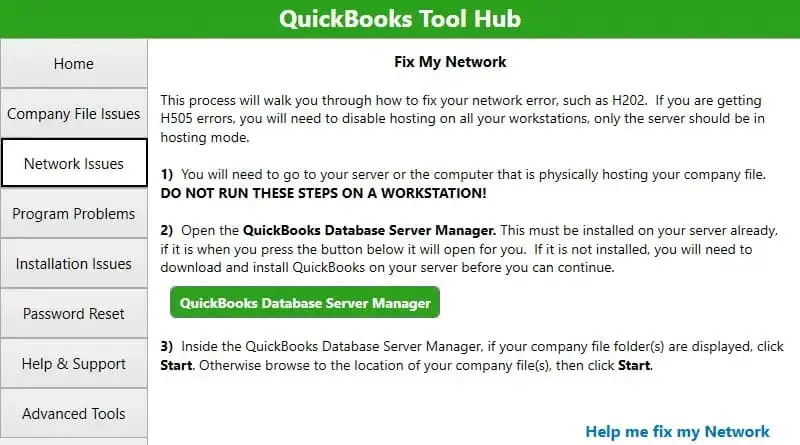
This is mainly for multi user setups.
Use it when:
- QuickBooks can’t switch to multi-user mode
- Workstations can’t open a file hosted on a server
- Network errors appear when opening the company file
What to do:
- Tool Hub → Network Issues
- Click QuickBooks Database Server Manager
- Scan the folder where the company file is stored
- Let it configure firewall permissions if needed
If you’re not the admin of the server computer, you may need your IT person here. Multi-user QuickBooks issues can turn into firewall and permissions problems fast.
Read More: QuickBooks Hosting Mode is Off? Here’s Your Ultimate Fix to Get Back to Multi-User Mode!
5) Printing & PDF Issues (Print and PDF Repair)
This one is fairly common and is particularly renowned for showing up at the worst of times.
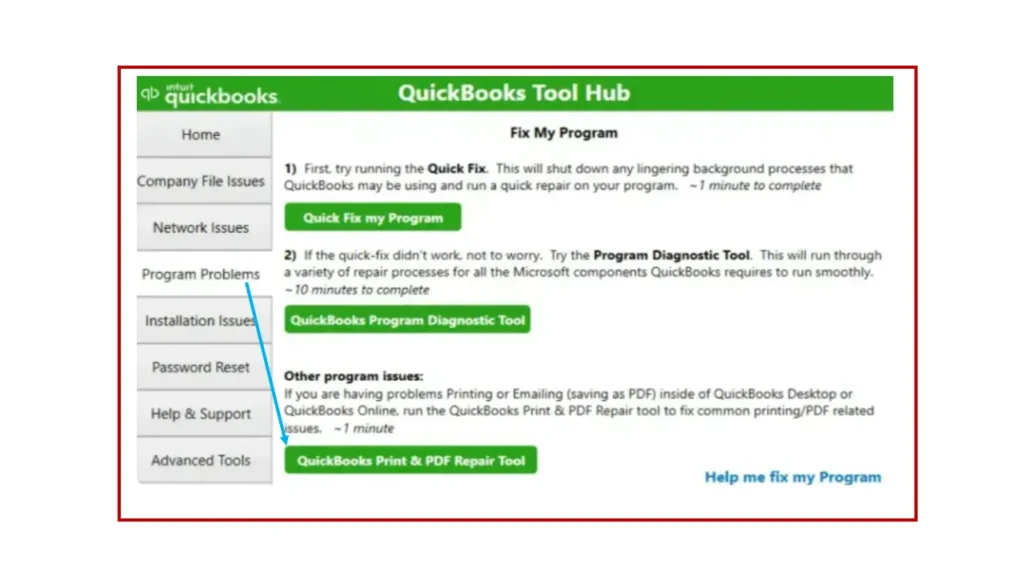
Here are the steps you should follow to fix the issue.
- Tool Hub → Printing & PDF Issues.
- Click QuickBooks PDF & Print Repair Tool.
- Test by printing a simple report or saving an invoice as a PDF.
If it still fails, it might be your printer driver or Windows print spooler. But run Tool Hub first because it fixes the QuickBooks side quickly.
6) Password Reset / Login Issues
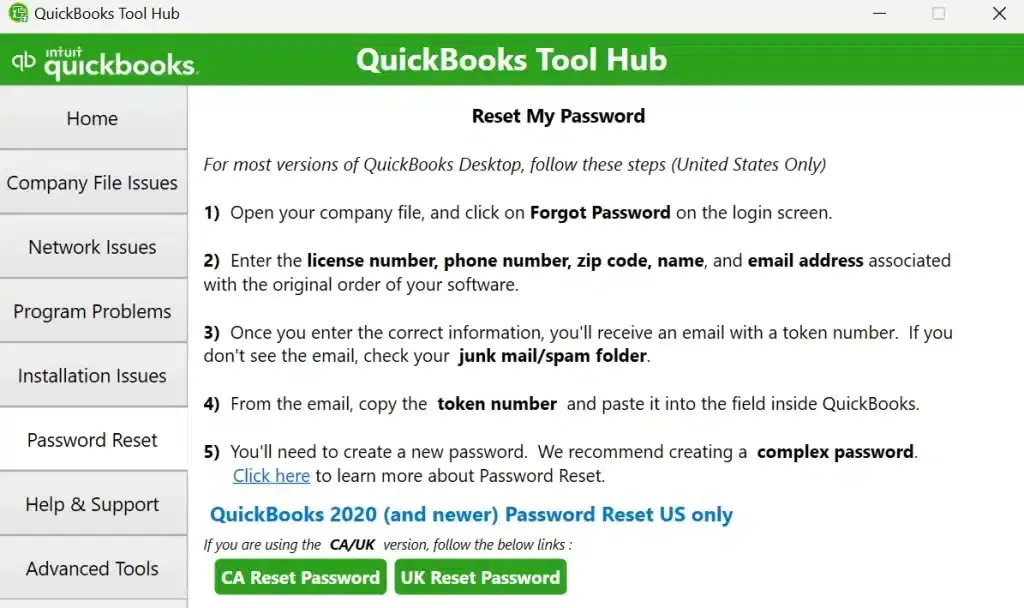
Depending on your Tool Hub version, you may see options to help with password related tasks or login components.
If you’re locked out of your company file, use Intuit’s official password reset flow. Tool Hub can help in certain scenarios, but for real access issues, you want the official account recovery method.
The right order to troubleshoot QuickBooks errors (simple flow)
If you’re unsure which button to click first, this is a reasonable order:
- Quick Fix my Program (Program Problems)
- File Doctor (Company File Issues)
- Install Diagnostic Tool (Installation Issues)
- Print & PDF Repair (if printing is the problem)
- Database Server Manager (if multi user / network problem)
Most issues get resolved in steps 1 and 2. Don’t overcomplicate it.
A few practical tips before you run repairs
These are small habits, but they save time:
- Close QuickBooks Desktop before running Tool Hub fixes unless it specifically asks you to keep it open.
- If your company file is on a server, run network tools on the server host computer, not the workstation.
- Although repairs are usually safe, it is an optimal choice to create backups.
- After running any big fixes (install diagnostic, file doctor), you should always restart Windows. It helps more than people want to admit.
What to do if the QuickBooks Tool Hub not working?
Sometimes Tool Hub runs fine and the problem still stays. At that point, don’t keep clicking the same repair 15 times.
Try this instead:
- Update QuickBooks Desktop to the latest release (if you can open it)
- Run Windows Update
- Temporarily disable antivirus and test (only if you trust your system and re-enable right after)
- Move the company file locally and test opening it (to isolate network issues).
- Check if the error code has a specific Intuit support article.
And if it’s a business-critical file and downtime is costly, it may be time to escalate to a QuickBooks expert. Especially for persistent 6000 series errors, major data damage, or multi-user hosting problems.
What to do if QuickBooks Tool Hub doesn’t fix the issue
Although Tool Hub is undoubtedly reliable, it can sometimes fail to repair a problem. At that point, don’t keep clicking the same repair 15 times.
Try this instead:
- Update QuickBooks Desktop to the latest release (if you can open it).
- Run Windows Update.
- Temporarily disable antivirus and test (only if you trust your system and re-enable right after).
- Move the company file locally and test opening it (to isolate network issues).
- Check if the error code has a specific Intuit support article.
And if it’s a business critical file and downtime is costly, it may be time to escalate to a QuickBooks expert. Especially for persistent 6000 series errors, major data damage, or multi user hosting problems.
Still Facing Problem with QuickBooks Tool Hub Downloading
Downloading QuickBooks Tool Hub should not have you jumping from five different websites and choosing between twenty different buttons. Use the official given link, install it once, and keep it around for when QuickBooks decides to act up again. However, if you are unable to install the QB Tool Hub or to get it started, you can always reach out at +1(800) 217-0394 for professional assistance to avoid any further trouble.
FAQs (Frequently Asked Questions)
Is Intuit QuickBooks Tool Hub free?
Yes. It’s a free utility.
Which QuickBooks versions does Tool Hub support?
Tool Hub is meant for QuickBooks Desktop versions and troubleshooting. Intuit updates compatibility over time. If you’re using an older Desktop version, Tool Hub may still work, but some fixes might be limited.
Can I use Tool Hub on Mac?
No. Tool Hub is for Windows only
Does Tool Hub fix data corruption?
It can help detect and repair some file issues using File Doctor, but it’s not magic. If your file is severely damaged, you may need:
a. A verified backup restore
b. A rebuild/verify process inside QuickBooks
c. Professional data repair services1
Where is QuickBooks Tool Hub installed?
Usually under your Windows installed apps. You can find it by searching “Tool Hub” in the Start menu.
What is QuickBooks Desktop Tool Hub and what problems does it fix?
Tool Hub is a free Windows app from Intuit designed to diagnose and fix common QuickBooks Desktop issues. It helps resolve company file problems, installation and update errors, program crashes, PDF and printing issues, and some login or password troubles.
Is QB Tool Hub compatible with Mac or QuickBooks Online?
No, QuickBooks Tool Hub is specifically built for QuickBooks Desktop on Windows. It does not run on Mac computers and is not intended for use with QuickBooks Online.

Brown Lopez is a Cloud Engineer and technical writer based in Austin, USA, who enjoys turning complex cloud ideas into clear, simple insights. With solid experience in cloud architecture and real-world projects, he loves creating practical content that helps professionals understand, build, and improve their cloud solutions with confidence.