
 ChatGPT
 Perplexity
 Grok
Grok Google AI
 Claude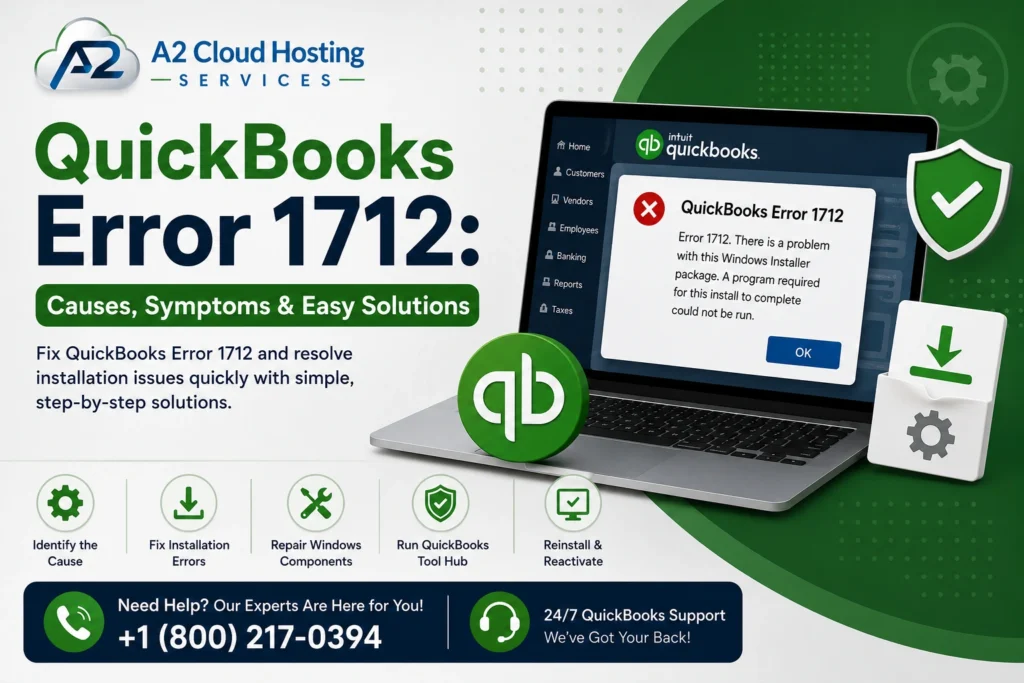
If you are here, I suppose you are a QB user facing the same error. Then you are in the right place, because here you’ll find the right solutions for QuickBooks Error 1712. We will explain everything in detail about this specific QB error. So, basically, this error pops up when the Windows installer encounters issues with an incomplete installation or corrupted files. There is more than one installation error you may encounter. But in this blog, we are going to discuss this, so make sure you read the complete guide. In this way, you won’t confuse it with other QB errors.
Why does QB Error 1712 happen in your software?
Let’s first discuss this error 1712 in simple words. See, it’s basically a Microsoft Windows installer error that happens when a previous QB installation gets stuck. Either when your Windows system files are damaged. Plus, Windows is trying to install the software, but is being blocked by old temporary files or background glitches. It may seem the same as other installation error codes like 1603, but it’s not. Now, let’s move forward and discuss the main causes of this error to better understand it.
Here are some common reasons why it can occur:
- The most common reason for error code 1712 is an incomplete uninstall. Pending or corrupted files from a previous version of the QB Desktop can cause problems during installation.
- The second reason that you may face error 1712 is system/registry corruption. Corrupted Windows registry keys or essential system files block the installer from executing properly.
- You may also encounter this error if an update or reboot is interrupted. The error often occurs when another program or a previous software update is interrupted or fails to prompt an important restart of the computer.
- Another reason is malware or viruses. These can damage system folders required for the installer to run.
- If there are any damaged or restricted folders. If trying to install QuickBooks in a heavily restricted or corrupted directory on your computer. This can show you the same QB error.
- If you are using it without administrative privileges, then error 1712 may occur. A lack of necessary Windows administrator permissions to modify system folders.
What are the Methods You Need To Try To Fix QuickBooks Error Code 1712
Step 1: First, Download the QB Tool Hub
- First, close QuickBooks before installing the tool hub.
- Download the latest version of QuickBooks Tool Hub safely. Save that file somewhere you can easily find it (like in your downloads folder or on your Windows Desktop).
Note: If you’ve installed Tool Hub before, you can check which version you have. First, select the Home tab. The version will be shown at the bottom.
- Open the file you downloaded (QuickBooksToolHub.exe).
- Follow the steps you see on your screen to install and agree to the terms and conditions.
- When the installation is complete, double-tap the icon on your Windows desktop to open the tool hub.
Note: If you can’t find the icon, press the Windows key to search for “QuickBooks Tool Hub”. Then, select the program.
Step 2: Then, use Quick Fix my Program from the QuickBooks Tools Hub
Now your next step is to run Quick Fix my program from the tool hub.
- For the first step, select Program Problems in the QB Tool Hub.
- Then, select Quick Fix my Program.
- Lastly, try installing QuickBooks again.
If that did not fix the error, create or add a Windows user with all the administrator rights. After running Quick Fix My Program, try reinstalling QuickBooks again.
Step 3: Try Running the Program as an Administrator
Now let’s look at the steps to run the program as an admin. Windows permission restrictions can prevent QuickBooks from updating correctly.
- Firstly, close the QuickBooks installer or program.
- Your second step is to right-click the QuickBooks installer file or the program icon.
- Now, just select Properties.
- Then go to the Compatibility tab and check the box labeled “Run this program as an administrator.”
- Lastly, click Apply and OK, then re-run the installer.
What Points to Remember When Fixing QuickBooks Error Code 1712?
Alright, let’s talk about how you can make some points you should keep in mind in order to properly solve this particular error code.
- First, please make sure your computer or system meets the QB Desktop system requirements.
- Also, remember to log in as an administrator to allow installation changes.
- You should always update your Windows operating system to the latest version.
- The third point is to uninstall previous or incomplete QuickBooks installs.
- Another point is to temporarily disable security software that may block the installation.
- Always ensure you back up your company files to avoid data loss.
- Last but not least pls ensure you have a good internet connection. Because unstable wifi can make things tough for you.
A Quick View Table – QuickBooks Error 1712
What is QB Error code 1712? | It is a Windows installer error that occurs when the software cannot be installed or updated due to damaged system files, Windows Registry conflicts, or incomplete uninstallations of previous versions. |
What are some reasons behind this error? | Pending uninstallations, reboot issues, damaged files, etc. |
What are the solutions to fix error 1712? | It can be fixed by downloading the QuickBooks Tool Hub and then using Quick Fix My Program from the tool hub. |
In Summary:
In this blog, we have learned how you can solve QuickBooks Error 1712 without any hassle. Plus, we have also listed some common causes, which is why this error happens in the first place. So now you have enough clarity about this QB error to fix it immediately.
External solution of Error 1712 – https://quickbooks.intuit.com/learn-support/en-us/help-article/product-delivery/error-1712-installing-quickbooks-desktop/L8t9rkfnp_US_en_US
Frequently Asked Questions
What exactly is QuickBooks Error 1712?
QuickBooks Error 1712 is an installation error. It will show you when QB software fails to install properly due to corrupted files, incomplete uninstallation of the previous version, or conflicts with your Windows firewall.
What are the causes that result in QuickBooks Error code 1712?
There are many causes of QB Error code 1712, such as incomplete installations of older software versions, Windows registry issues, or pending reboots. More reasons are malware or viruses, a restricted folder, etc.
How can I quickly fix QB Error code 1712?
You can quickly fix QB Error 1712 by downloading and installing the QB Tool Hub, then running Quick Fix My Program from the Tool Hub.
What is the exact error text that appears when QB Error 1712 in QB Desktop?
You may see a pop-up message that says, “We’re sorry!” Something went wrong with your installation. Error 1712. One or more of the files required to restore your computer to its previous state could not be found. Restoration will not be possible.

Brown Lopez is a Cloud Engineer and technical writer based in Austin, USA, who enjoys turning complex cloud ideas into clear, simple insights. With solid experience in cloud architecture and real-world projects, he loves creating practical content that helps professionals understand, build, and improve their cloud solutions with confidence.