
 ChatGPT
 Perplexity
 Grok
Grok Google AI
 Claude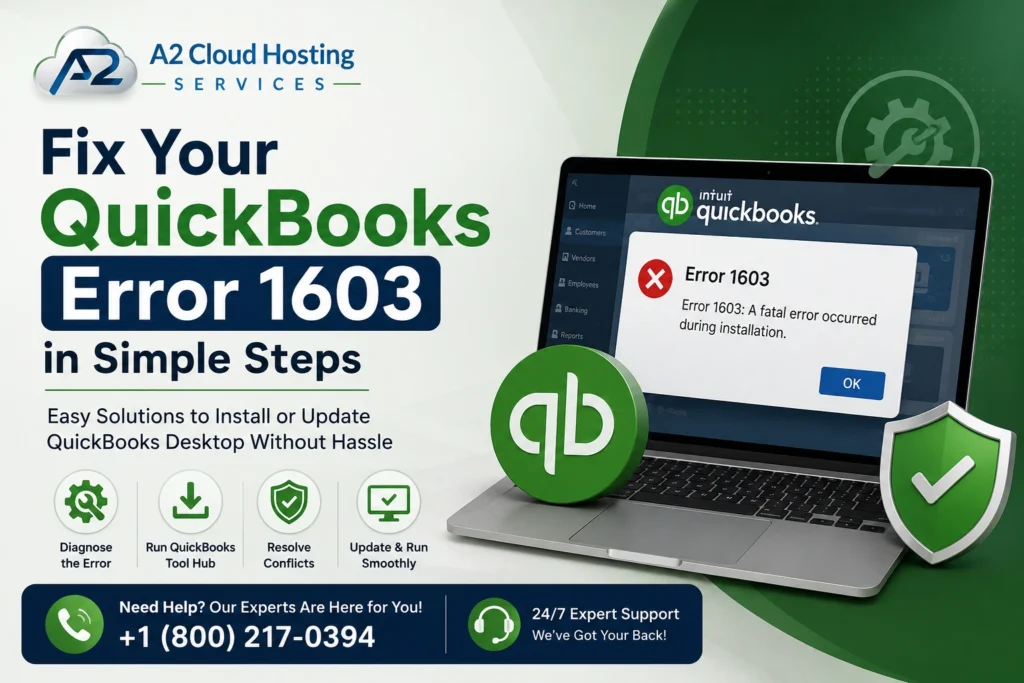
If you also usually use QuickBooks to record your financial data, then you must have faced this same error. Ever happen that while updating your QB Desktop, you see QuickBooks Error 1603? It basically indicates that something is preventing the software from configuring properly on your system. This problem can be as frustrating as it sounds right now. But relax, we are here to give you solutions that you must be looking for to this QB issue. Here in this guide, we’ll discuss how you can actually solve this error. Plus, we’ll explain this error in detail, so keep reading this guide till the end. You’ll be able to install or update your QB desktop. It is not a big issue, so your QB data won’t disappear.
What are Some Common Reasons Behind Error code 1603 in QB?
Alright, before we dive into the reason behind that, why are you encountering QB error 1603 when updating or installing QB desktop? First of all, to put this specific error in simple terms, it’s a Windows Installer error that occurs when the system prevents the software from modifying critical files during an installation or update. See, it is mainly caused by a corrupted Microsoft .NET Framework, restricted security policies, or interference from any third-party antivirus software.
Now, let’s discuss why this error appears in the first place. By knowing the causes of this issue, you can better understand it. And you’ll also be able to apply the right solutions for your situation, too.
- The first reason you are dealing with this error in your software is that the Microsoft .NET Framework is corrupted. If .NET files are damaged or outdated, the QuickBooks installer will fail.
- The second reason is interference from antivirus or firewall software. You should always check if any of your security software is causing blockages or problems. Because this software may falsely flag QuickBooks installation scripts as threats and block them.
- One of the most common reasons for small errors is insufficient Windows Permissions: you must be logged in to Windows as an Administrator to make system-level changes. Limited user accounts or strict Group Policies often block MSI updates.
- Another reason you must know is a damaged Windows installer service. If the Windows component that manages software installations is malfunctioning or corrupted, the update will surely gonna fail.
- If you have any incomplete previous installations. Pending or damaged files from a previous QuickBooks installation can create problems with new update files.
- Corrupted MSXML Components: Microsoft XML Core Services are necessary for QuickBooks to install correctly; damage to these parts causes installation to abort.
What Simple Solutions Can You Try to Fix: QB Error Code 1603
Step 1: Download the QuickBooks Tool Hub
You should use the QB Diagnostic Tool, but first install the QB tool hub. Follow the exact steps to safely download the tool hub.
- Close QuickBooks.
- Now, your next step is to download the latest version of QuickBooks Tool Hub. Save the file somewhere you can easily find it (for example, your Downloads folder or Windows desktop).
A note: If you’ve already installed Tool Hub before, you can check which version you have. Just select the Home tab. The version will be there in the bottom right, or you can select About to view it.
- Open the same file you downloaded just now (QuickBooksToolHub.exe).
- Follow the same steps you see on your screen to install & agree to the terms and conditions.
- Now that the installation is complete, double-click the icon on your Windows desktop to open the tool hub.
If you download and install the Tool Hub in this way. You’ll be able to download it on your system safely without any issues.
Step 2: Running QuickBooks Install Diagnostic Tool
Now run the QB Install Diagnostic tool to identify the error and fix it easily. Here’s how you can run this QB tool.
- Firstly, open the QuickBooks Tool Hub on your system.
- Then, in the tool hub, select Installation Issues.
- Next, just select QuickBooks Install Diagnostic Tool. Let the tool run properly.
- Lastly, when the tool finishes, restart your system once and see if error 1603 is fixed.
Most of the time, the error will no longer be there, and you’ll be able to use and update your QB Desktop easily.
Step 3: Ensure to Update Windows
See, we all know that how important it is to keep your system updated. But most of us usually forget to update Windows. So make sure you press the Windows key to check for any updates. So, before you even try these solutions, make sure to update & restart your system.
Step 4: Manually Repair Microsoft .NET Framework
If the diagnostic tool doesn’t work, you can fix this error manually.
- Your first step is to open the Windows Control Panel and select Programs and Features.
- Then, in the second step, click Turn Windows features on or off.
- Please make sure that both .NET Framework 3.5 (which includes .NET 2.0 and 3.0) and .NET Framework 4.8 (or the latest available version) are enabled, then restart your system once.
After doing all these steps, you’ll be able to get rid of the error 1603 for the long term.
What Things To Keep in Mind When Fixing QuickBooks Error 1603?
Now, let’s also talk about a few important things that you should keep in mind. Whenever you encounter this error, make sure to check these things as well.
- First and most important, ensure your windows are up to date to their latest version. By keeping your Windows operating system up to date, you can avoid compatibility issues.
- Also, make sure to check for your QB software updates. Always use the latest QB Desktop version to prevent installation and update errors.
- Next, install .NET Framework updates. Because this software relies on the Microsoft .NET Framework, keep it up to date and functional.
- Also, remember to temporarily disable antivirus software. Your security software can sometimes block QuickBooks installations. You can disable it temporarily while you’re updating the QB.
- Next, do check your disk space. Please make sure there’s enough free space on your hard drive for QuickBooks files & updates.
- Another important thing, repair Windows components periodically. By regularly checking and repairing Microsoft components, like MSXML, to prevent installation issues.
- Lastly, make sure you have a stable internet connection or wifi. Always check your wifi and network before installing or updating anything.
A Quick View Table – A QuickBooks Error 1603
What is Error 1603 in QuickBooks Desktop? | QB Error 1603 occurs during the installation or update of QB Desktop. It simply means your computer’s Windows system couldn’t install the software. |
Reasons Behind the Error 1603? | It occurs for many reasons, such as damaged or corrupted files, security blocks, third-party software interference, and outdated Windows. |
What Solutions to Try to Fix? | It can be fixed by running the QB Diagnostic install tool, repairing manually, updating your Windows properly, etc. |
Wrapping it Up:
So, that’s all for today. We talked about QuickBooks Error 1603 and learned what it’s about. Plus, the reason it occurs and what you can do to fix it completely, so you can run your update smoothly.
External solutions of Error 1603 – https://quickbooks.intuit.com/learn-support/en-us/help-article/product-delivery/fix-error-1603-installing-quickbooks-desktop/L9D8tuQzB_US_en_US
Frequently Asked Questions
Will I lose my QB financial data if I get Error 1603 during an update?
No, your financial data is completely safe. QuickBooks Error 1603 is strictly an installation and program file issue. Your accounting data is stored separately in your company file (.QBW file extension). Running software updates or reinstalling your QB program will not edit or delete your actual financial records.
Which QB Tool should I use when QuickBooks Error 1603 occurs?
You should use the QuickBooks install diagnostic tool to identify and solve QuickBooks Error 1603. This tool will automatically identify the error you are facing in your software and fix it. You don’t need to do anything apart from running this tool once.

Brown Lopez is a Cloud Engineer and technical writer based in Austin, USA, who enjoys turning complex cloud ideas into clear, simple insights. With solid experience in cloud architecture and real-world projects, he loves creating practical content that helps professionals understand, build, and improve their cloud solutions with confidence.