
 ChatGPT
 Perplexity
 Grok
Grok Google AI
 Claude
If you have ever tried to open, restore, back up, or move a QuickBooks company file and got hit with QuickBooks Error 0x800701b1 with the message:
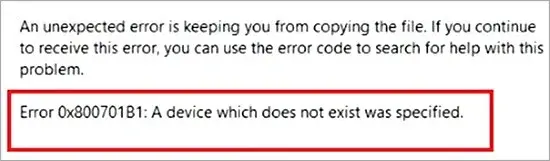
“A device which does not exist was specified”
you already know how confusing it sounds.
QuickBooks is basically saying it tried to read or write your file to a drive path that Windows thinks is not available. In most cases, this is not a “QuickBooks bug.” It is a Windows + storage path issue that QuickBooks simply exposes.
Below is a practical, step-by-step guide to fix it.
What QuickBooks Error 0x800701b1 usually means
This error typically happens when QuickBooks is trying to access something like:
- An external hard drive or USB drive
- A mapped network drive
- A shared folder hosted on another computer
- A cloud-synced folder (OneDrive, Dropbox, Google Drive)
- A drive letter or path that changed
- A disk that is intermittently disconnecting
In short:
- QuickBooks asks Windows to open a file path
- Windows responds: “that device/path is not there”
- QuickBooks displays 0x800701b1
Common situations where you’ll see this error
You may see error 0x800701b1 when you try to:
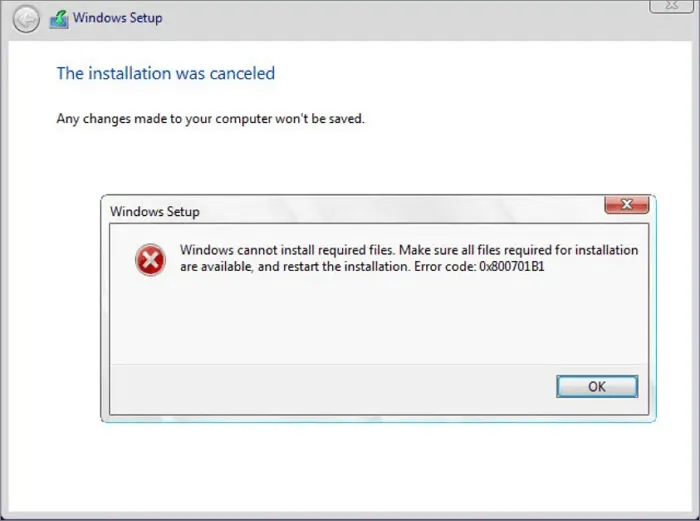
- Restore a company file backup (.QBB)
- Create a backup to an external drive or network location
- Open a company file (.QBW) stored on a network share
- Move the company file to another drive
- Run a scheduled backup to a location that is no longer reachable
- Use multi-user mode with the file hosted on another PC
Before you fix anything, do these quick safety steps
Do not skip these.
- Close QuickBooks software on all computers.
- If your file is on a network: Ask everyone to log out of the company file, and the multi-user session is not hosted.
- Make a copy of your company file folder (if accessible): Copy the .QBW file and related files like .TLG and .ND if present
- If the drive is failing or disconnecting: Avoid repeated attempts that could corrupt backups
Fix 1: Check that the drive/path exists in the first place (most important)
The error message is literal. The first thing you must do is to demonstrate the existence of the QuickBooks backup error 0x800701b1.
If case you are restoring or backing up to an external drive, Disconnect the USB drive.
- Plug it back in directly to your PC (avoid USB hubs)
- Try a different USB port (preferably a port on the back of a desktop)
- Open File Explorer and confirm the drive shows up, you can open it, and you can create a test folder
If Windows cannot reliably see the drive, QuickBooks will not either.
If you are using a mapped network drive (like Z: or Q:)
- Open File Explorer
- Click This PC
- Check if the mapped drive shows as disconnected, asking for credentials, or slow to open
- If it is disconnected: Right-click the mapped drive, click Disconnect, then re-map it again (or use a UNC path, covered below)
If you are using a network share path
Confirm you can reach the share outside QuickBooks:
- Press Win + R
- Type the path like: \\ServerName\Share\QuickBooks
- Press Enter
- Confirm the folder opens, and you can see the company file.
If this fails, however, it does not necessarily mean that it is a QuickBooks issue. On the contrary, it can be a network name resolution, permission, or even problems with the connectivity.
Fix 2: Stop using mapped drive letters and use the UNC path instead
QuickBooks and Windows are also fussy with mapped drives, particularly after restarting, alterations to VPN, or credential problems. Therefore, you will need to follow the following steps for how to fix error 0x800701b1.
Instead of:
- Z:\QuickBooks\MyCompany.QBW
Use:
- \\ComputerName\QuickBooks\MyCompany.QBW
- or \\ServerName\Share\QuickBooks\MyCompany.QBW
How to open the file using UNC path in QuickBooks
- Open QuickBooks (without opening the company file if possible)
- Go to: File > Open or Restore Company
- Choose: Open a company file
- Browse to: Network and then your server/share, or paste the UNC path into File Explorer’s address bar and navigate
This one change fixes a surprising number of 0x800701b1 cases.
Fix 3: Move the file temporarily to your local drive (to isolate the cause)
This is a great test because it tells you if the error is coming from QuickBooks or from your storage location. This will also help you identify the root cause of QuickBooks cannot access company file 0x800701b1.
Steps
- Create a folder on your desktop: C:\QBTEST\
- Copy the company file to the folder. Copy the .QBW file, and if possible, also copy the .TLG file.
- Open QuickBooks.
- Open the company file from C:\QBTEST\YourCompany.QBW
What this tells you
If it works locally: Then it is safe to assume that the error message originates from the storage path (it can be network, external drive, cloud sync, or perhaps even permissions).
If it still fails locally: You may have a Windows permissions issue, file damage, or QuickBooks install issue.
Either way, you now know where to focus.
Read More: QuickBooks on Cloud Works: Benefits & Secure Access Anywhere.
Fix 4: Check and stabilize the drive letter (external drives often change)
It is not entirely rare for external drives to change their character. Therefore, if your backup job or your QuickBooks settings point to a previous character, Windows will not be able to read the device and will report that the device does not exist. In order to fix QuickBooks file transfer error 0x800701b1, you will need to:
Assign a permanent drive letter
- Press Win + X and open Disk Management.
- Find the external drive.
- Right-click it and select Change Drive Letter and Paths.
- Click Change.
- Pick a letter far down the alphabet like R: or S:.
- Click OK.
Now update your QuickBooks backup destination to the new, stable letter. This will help you avoid future error 0x800701b1 external drive QuickBooks.
Fix 5: Fix permissions on the company file folder (especially on network shares)
Sometimes the folder exists, but the QuickBooks user does not have rights to write to it. Windows may throw device/path errors in confusing ways depending on how the share is configured.
What to check
On the computer hosting the company file:
- Right-click the folder that contains the .QBW
- Click Properties > Sharing > Advanced Sharing
- Ensure the right users/groups have permissions: Read and Change (ideally Full Control for the QB service account in small offices)
Also check NTFS permissions
- Go to Properties > Security tab
- Confirm the Windows user running QuickBooks has appropriate access
- If using QuickBooks Database Server Manager, confirm the relevant QuickBooks service user has appropriate access
Safe troubleshooting approach if unsure
- Temporarily grant Full control to Administrators and the specific user to test
- Then tighten permissions after confirming it works
Fix 6: If the file is on OneDrive/Dropbox/Google Drive, stop syncing that folder
This is a big one.
QuickBooks company files do not behave well inside live-sync folders because the sync tool can lock the file, change availability status, or cause partial downloads.
What to do instead
- Move the .QBW out of the sync folder
- Put it in a standard local folder like C:\QuickBooks\Company Files\
If you need offsite backup
- Backup the .QBB to a synced folder, not the live .QBW
- Or use a proper hosted QuickBooks environment
If you keep the live .QBW in a cloud sync folder, errors like 0x800701b1 tend to come back.
Note: Switch to QuickBooks cloud hosting and unlock real flexibility for your growing business.
Fix 7: Run QuickBooks File Doctor (helps if the issue includes network configuration)
QuickBooks Tool Hub includes File Doctor which can help with company file and network access issues.
Steps
- Download and install QuickBooks Tool Hub from Intuit (official source)
- Open Tool Hub
- Go to Company File Issues
- Click Run QuickBooks File Doctor
- Select your company file and run the scan
Fix 8: Check the QuickBooks Database Server Manager For Multi-User/Network Setups
If your company file is hosted on another computer and you use Multi-user mode, confirm the host is set up correctly.
On the host computer
- Open QuickBooks Tool Hub
- Go to Network Issues
- Open QuickBooks Database Server Manager
- Ensure the folder containing the company file is scanned
- Click Start Scan (or re-scan)
On workstations
Access File menu
- In QuickBooks, go to File > Utilities
Verify hosting configuration
- Make sure workstations are not hosting—you generally want only the server/host to host multi-user access
Misconfigured hosting can cause intermittent access failures that look like device errors.
Fix 9: Test the drive and fix disk errors (important if this happens randomly)
If the error appears “sometimes” and especially if it involves an external drive, the real problem may be a failing disk or file system errors.
Run a disk check
For the drive where the file lives:
- Open Command Prompt as Administrator
- Run: chkdsk X: /f
- Replace X: with the correct drive letter
If Windows reports bad sectors or repeated corrections, stop using that drive for live company files.
Fix 10: Disable USB selective suspend (for external drive disconnections)
On some systems, Windows power settings can put USB devices to sleep, which makes the drive appear to “vanish” for a moment.
Steps (Windows)
- Open Control Panel.
- Go to Power Options.
- Click Change plan settings.
- Click Change advanced power settings.
- Expand USB settings.
- Expand USB selective suspend setting.
- Set to Disabled.
- Apply and restart.
This helps if backups fail mid-process to USB storage.
Fix 11: Update QuickBooks and Windows (yes, it matters here)
This error is mostly Windows-storage related, but QuickBooks updates can include fixes for backup/restore handling and network access.
- Update QuickBooks Desktop to the latest release
- Run Windows Update
- Restart the PC after updates
If your Windows network components or storage drivers are outdated, you can see the QuickBooks file access error 0x800701b1
Fix 12: Use a clean, simple local backup path when restoring
If your restore location is complex (deep folder structure, special characters, long path), it will cause restoration issues. Therefore, you will need to simplify your local backup path restoration location to something like: C:\QBRestore\
Avoid these practices:
- Very long folder names
- Special characters in folder names
- Saving directly to an external drive during restore (restore locally first, then copy)
A clean restore workflow that often works:
- Restore the .QBB to C:\QBRestore\
- Open the restored .QBW locally
- If needed, move it to the server/share after confirming it opens
What if you still get 0x800701b1 after all fixes?
If you are still facing the 0x800701b1 error, then you can narrow down its root cause with two simple questions.
1) Does the company file open locally on the same computer?
If yes:
- The issue is most likely related to your network path, share, mapping, permissions, or hosting settings.
If no:
- It is likely that your company file has been damaged, or the QuickBooks installation/Windows profile permissions are at play.
2) Does the error only occur on a specific drive?
If yes:
- Replace that drive or stop using it for live QuickBooks work.
- Use it only for secondary backups if it is stable.
Even if the issue keeps coming back or shows up in different situations, it’s best to get expert help. You can contact our expert team at +1(800) 217-0394 for quick, reliable solutions. They’ll guide you through the fix and help keep your QuickBooks application running smoothly.
FAQs (Frequently Asked Questions)
What does QuickBooks Error 0x800701b1 mean and when does it occur?
QuickBooks Error 0x800701b1 means “A device which does not exist was specified.” It typically occurs when QuickBooks tries to access a file path that Windows cannot find or recognize, such as external drives, mapped network drives, shared folders, or cloud-synced directories. This error is usually due to Windows storage path or device issues rather than a QuickBooks software bug.
In which situations am I likely to encounter QuickBooks Error 0x800701b1?
You may see error 0x800701b1 when attempting to restore a company file backup (.QBB), create backups on external or network drives, open company files stored on network shares, move company files between drives, run scheduled backups to unreachable locations, or use multi-user mode with files hosted on another PC.
What initial safety steps should I take before trying to fix QuickBooks Error 0x800701b1?
Before troubleshooting, close QuickBooks on all computers. If your file is on a network, ensure everyone logs out and confirms no one is in multi-user mode. Make a copy of your company file folder if accessible—including .QBW, .TLG, and .ND files—to prevent data loss. Also, avoid repeated attempts if the drive is failing or disconnecting to prevent backup corruption.
How can I confirm if the drive or path causing QuickBooks Error 0x800701b1 actually exists?
For external drives: disconnect and reconnect the USB drive directly to your PC (avoid hubs), try different USB ports, and verify in File Explorer that you can open the drive and create folders. For mapped network drives: check if the drive appears disconnected in File Explorer; if so, disconnect and remap it or use UNC paths instead. For network shares: use Run (Win + R) to enter the share path (e.g., \ServerName\Share\QuickBooks) and confirm you can access the folder outside QuickBooks.
Why should I stop using mapped drive letters and switch to UNC paths in QuickBooks?
Mapped drive letters can become disconnected after system reboots, VPN changes, or credential updates, causing QuickBooks to report device/path errors like 0x800701b1. Using UNC paths (e.g., \ServerName\Share\QuickBooks) provides a direct and stable connection that reduces these errors. To use UNC paths, open QuickBooks without opening a company file first, then navigate via File > Open or Restore Company > Open a company file > Network and select your server/share
What steps can I take if I suspect the issue is with my storage location rather than QuickBooks itself?
Try moving your company file temporarily to a local drive by creating a folder like C:\QBTEST\ on your desktop and copying the .QBW (and .TLG if possible) files there. Open QuickBooks and open the company file from this local folder. If it works locally without error 0x800701b1, then the original issue lies with your external/network/cloud storage path or permissions. If it still fails locally, investigate Windows permissions issues, potential file corruption, or QuickBooks installation problems.

Brown Lopez is a Cloud Engineer and technical writer based in Austin, USA, who enjoys turning complex cloud ideas into clear, simple insights. With solid experience in cloud architecture and real-world projects, he loves creating practical content that helps professionals understand, build, and improve their cloud solutions with confidence.